
How to print Avery® 5390 name badges from Excel
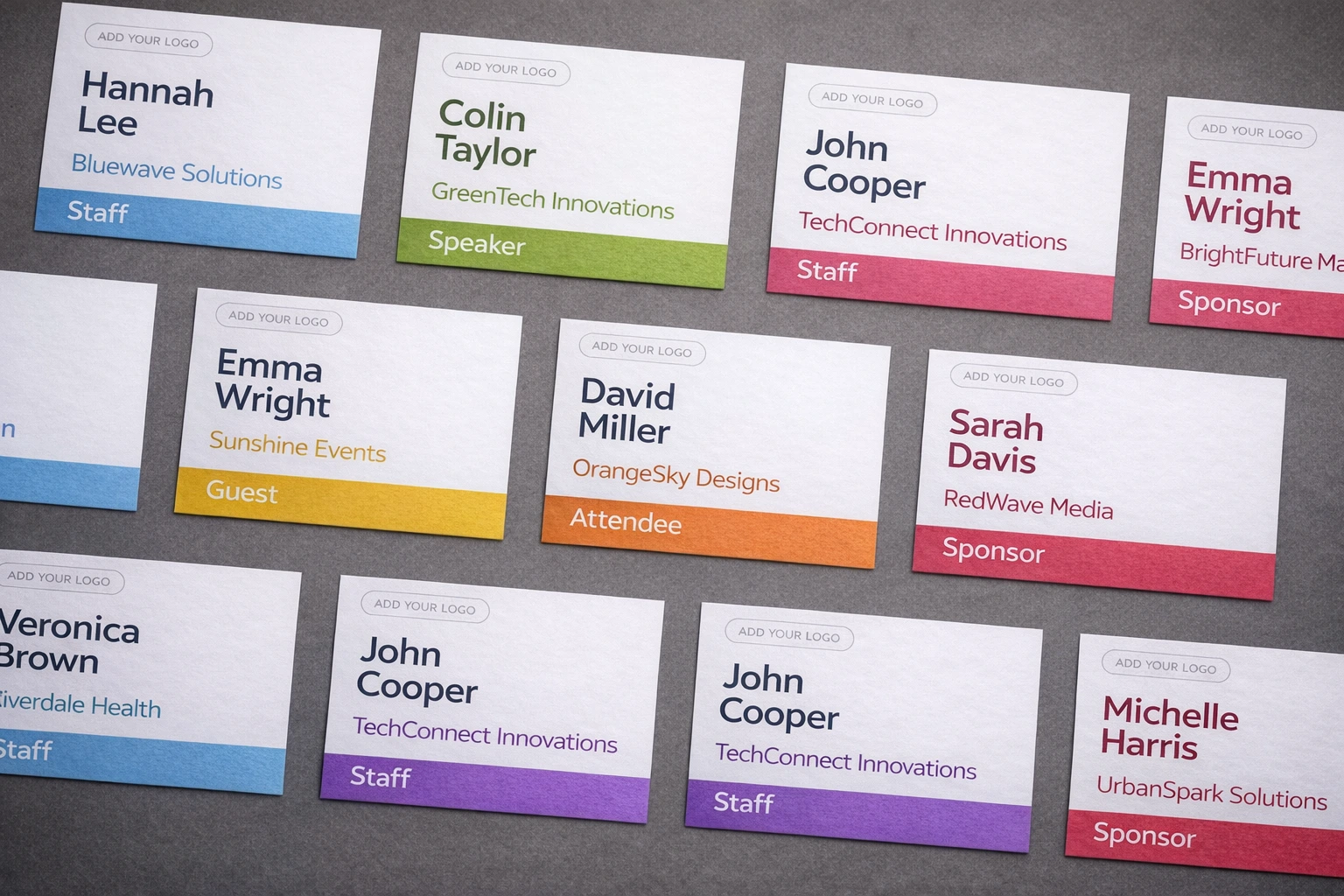
If you already know you need Avery® 5390 name badges, you probably do not want to spend your afternoon wrestling with Word tables, mail merge fields, margins, and printer alignment.
You just want to take an attendee list from Excel, turn it into clean name badge inserts, and print them on the right sheet.
That is exactly the workflow BadgeFlow is built for. You can import attendee data from Excel or CSV, choose a 3 1/2" × 2 1/4" badge size, select an Avery® 5390-compatible template, customise the design, and generate a print-ready PDF.
Avery® 5390 is a popular name badge insert format listed by Avery® as 2 1/4" × 3 1/2", 8 per sheet. It is commonly used for event name badges that go inside plastic badge holders or lanyard holders.
What is Avery® 5390?
Avery® 5390 is a name badge insert template for printable badge cards. Each insert is 2 1/4" × 3 1/2", and the sheet contains 8 inserts.
This size is often used for:
- Conferences
- Meetups
- Networking events
- Company events
- Training sessions
- Visitor badges
- Staff and volunteer badges
- Community events
In BadgeFlow, this same physical badge size is selected as:
3 1/2" × 2 1/4"
That is the horizontal version of Avery®'s listed 2 1/4" × 3 1/2" dimensions. The size is the same; the order of the dimensions depends on whether you describe the badge as portrait or landscape.
Why print Avery® 5390 name badges from Excel?
Most event organisers already keep attendee data in a spreadsheet. Even if registrations come from Eventbrite, Cvent, Bizzabo, Universe, Meetup, Google Forms, or another platform, the final export usually becomes an Excel or CSV file.
That makes Excel the natural starting point for badge printing.
The problem is that traditional Avery® workflows sometimes involve opening a template in Word, placing fields manually, running mail merge, checking alignment, exporting to PDF, and fixing layout issues if something shifts.
BadgeFlow gives you a more direct route:
Excel or CSV → badge design → Avery® 5390-compatible PDF → print
This is especially useful when you have:
- Hundreds of attendees
- Last-minute registration changes
- Different badge types, such as Speaker, Staff, VIP, or Attendee
- Long names or company names
- QR codes or barcodes
- A branded event design
- A deadline before check-in opens
Step 1 — Prepare your attendee spreadsheet
Start with a clean Excel or CSV file. Each row should represent one attendee, and each column should contain one type of information.
A simple attendee spreadsheet might include:
| First Name | Last Name | Company | Job Title | Ticket Type |
|---|---|---|---|---|
| Anna | Smith | Acme Events | Marketing Lead | Attendee |
| James | Brown | Northstar Labs | Speaker | Speaker |
| Priya | Patel | BrightWorks | Operations Manager | VIP |
You can include as many fields as you need, but the most common badge fields are:
- First name
- Last name
- Full name
- Company
- Job title
- Role
- Ticket type
- Badge category
- Table number
- QR code value
- Barcode value
- Check-in ID
Before importing your file, quickly check for common spreadsheet issues:
- Empty name fields
- Duplicate attendees
- Very long company names
- Placeholder values like "N/A"
- Inconsistent capitalisation
- Missing badge categories
- Columns with unclear names
This follows the same general workflow used for event-platform exports: get the attendee data, clean it if needed, import it into BadgeFlow, map the fields, choose a badge layout, and generate the PDF.
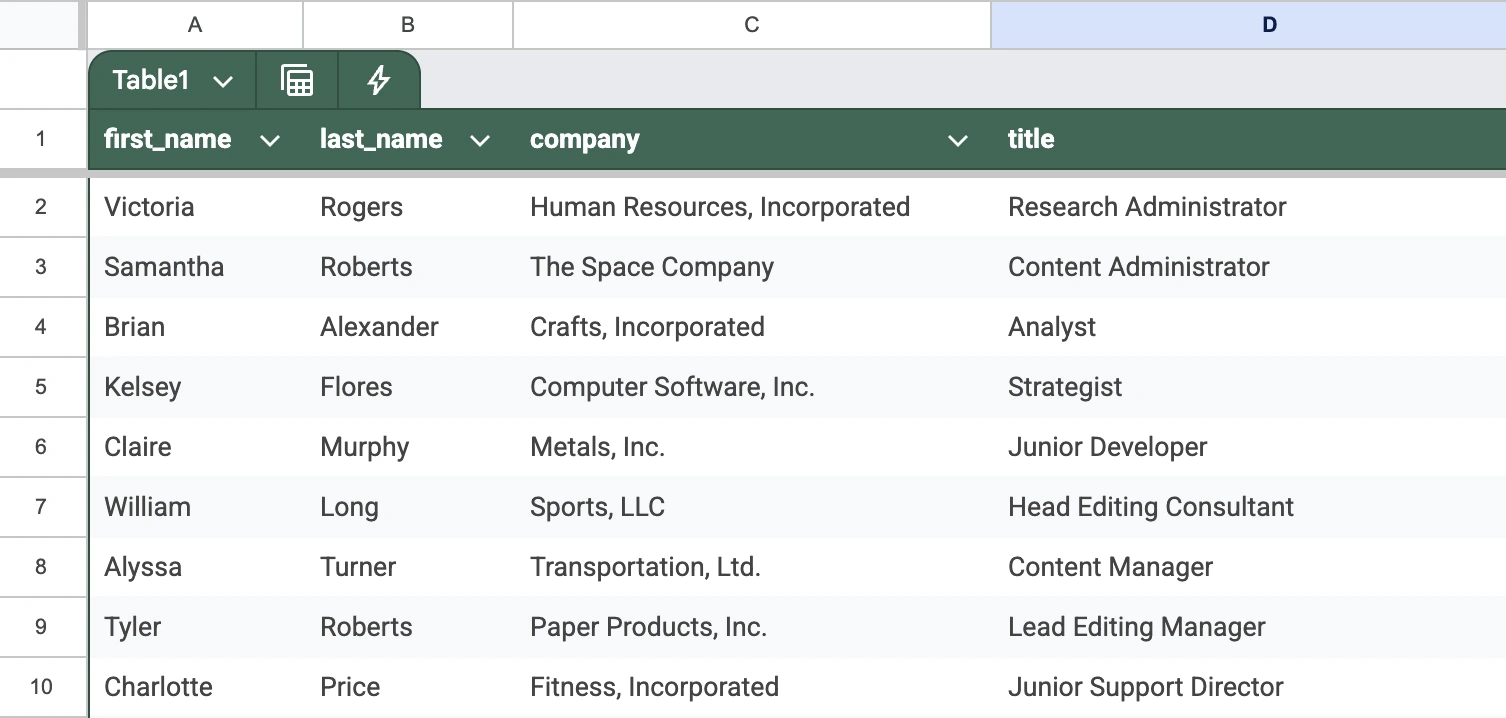
Our guide on name badges from Excel has more column preparation ideas that apply here too.
Step 2 — Import your CSV or Excel file into BadgeFlow
- Open BadgeFlow.
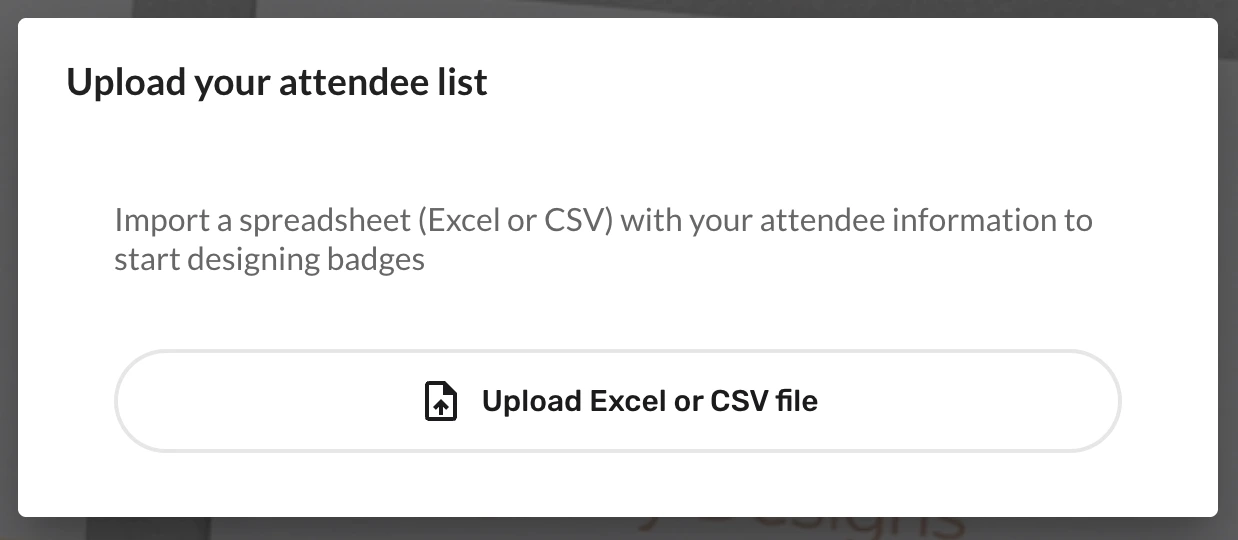
- Click Upload Excel or CSV file.
- Upload your prepared CSV or Excel file.
- Map CSV or Excel columns to badge fields (e.g., First Name, Last Name, Company, Role).
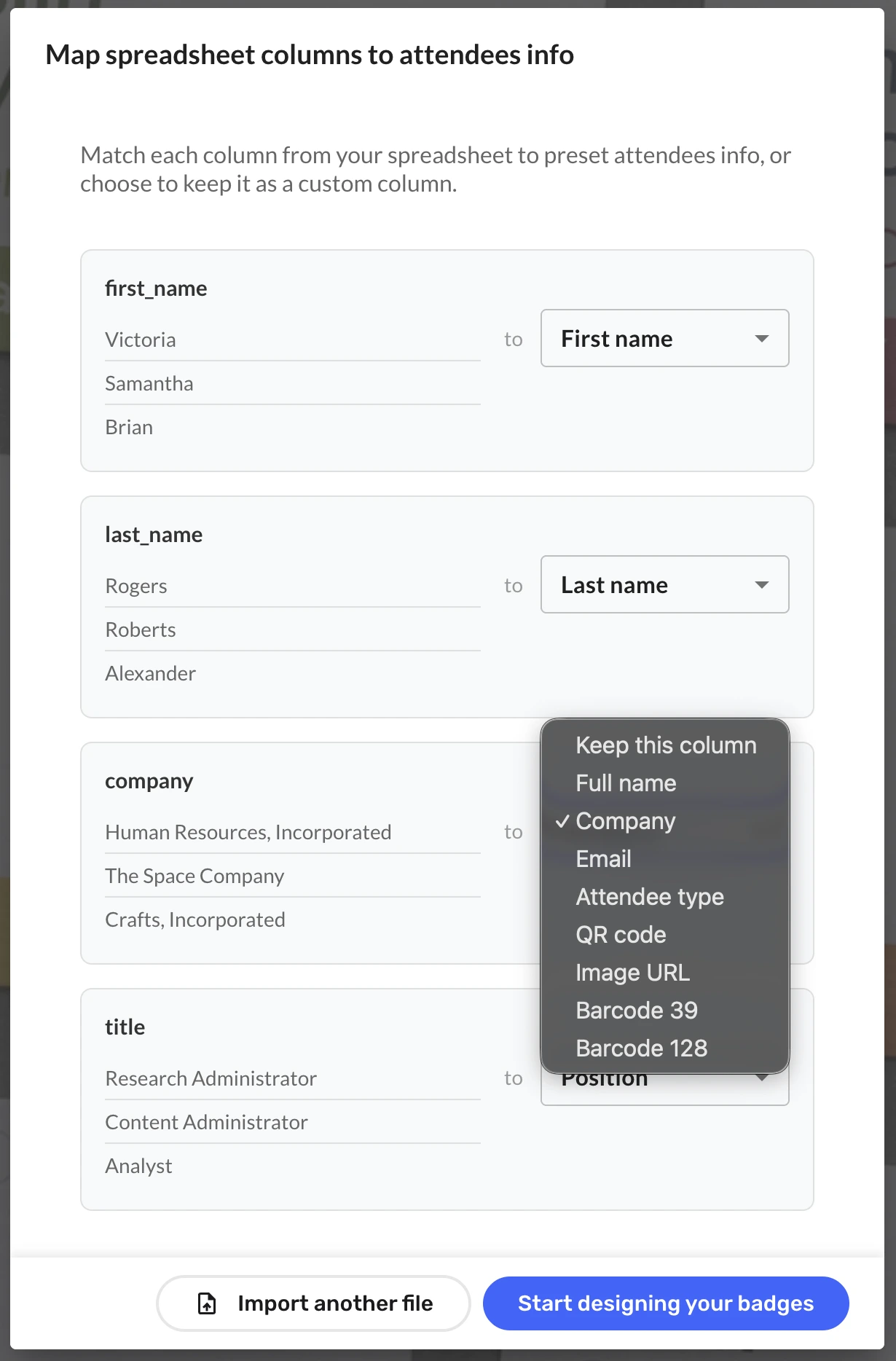
If you need scannable codes on your badges: QR code, Barcode 39 or Barcode 128
- Ensure your CSV or Excel export has a column with a unique value per attendee (e.g., ticket_id, attendee_id, order_id, or a custom “badge_code”).
- Map the column with the unique value to a QR code, Barcode 39 or Barcode 128 field.
Common spreadsheet columns you'll likely use on badges
- Name (or First Name + Last Name)
- Company (if collected as a custom question)
- Job title / Role (custom question)
- Ticket type (helpful for staff / VIP / speaker badges — see how to use colour-coded roles for company events)
- Email (optional; many organisers avoid printing it)
Step 3 — Pick a badge size and template
Now the fun bit: making it look professional without spending your entire life nudging text boxes.
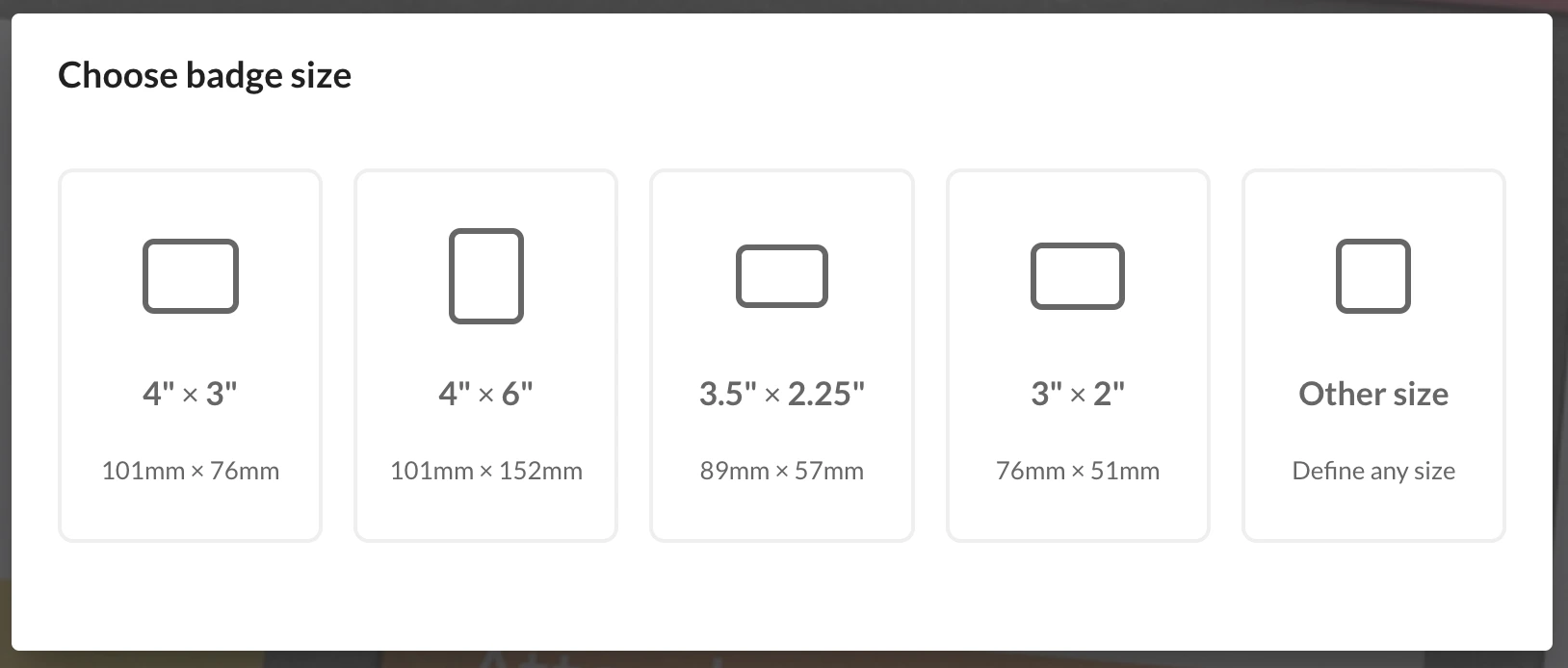
- Badge size: select 3 1/2" × 2 1/4" (89mm × 57mm) so you can use an Avery® 5390-compatible template. Matching Avery® templates appear next to the badge size cards.
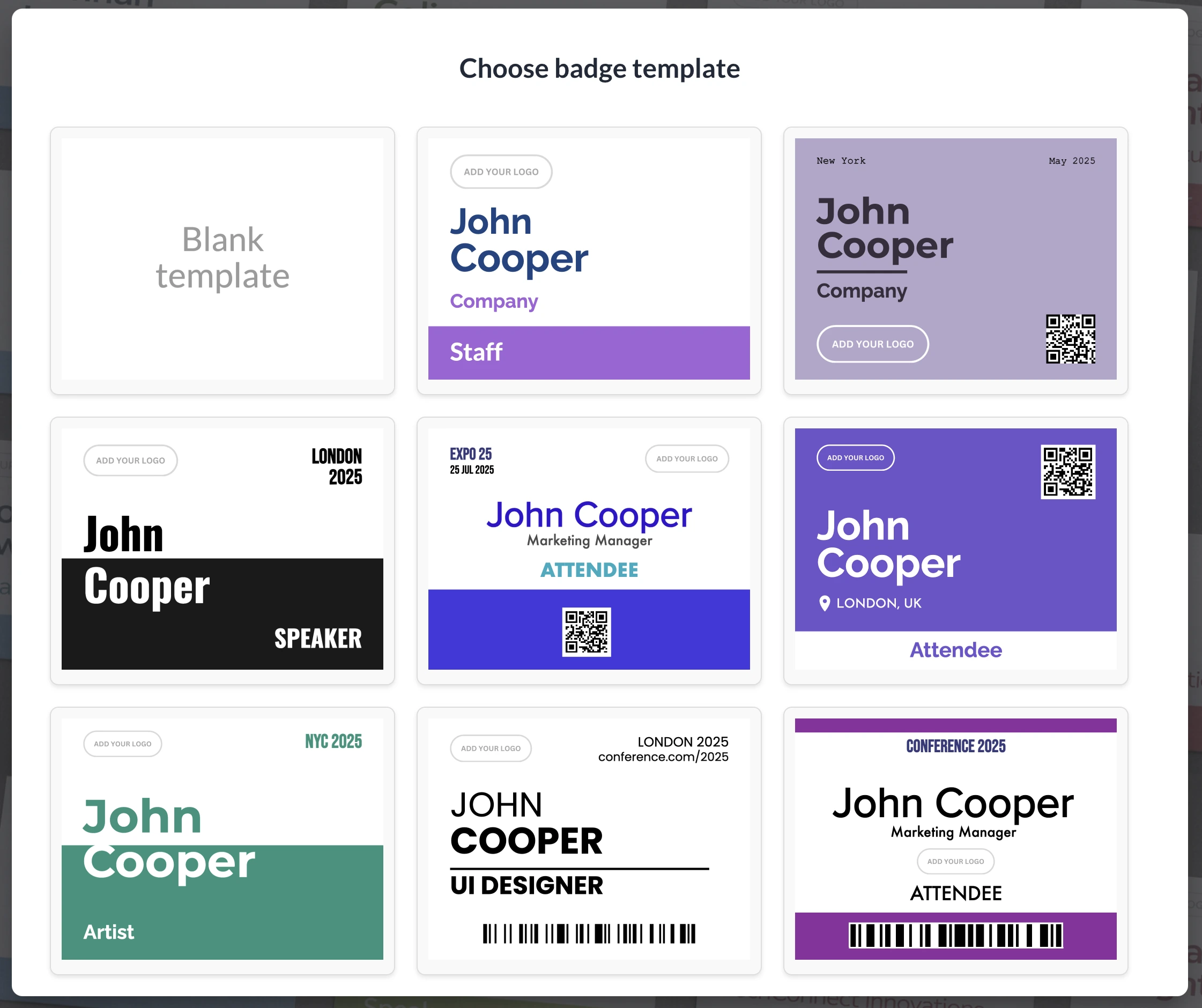
- Select a badge template (30+ pre-designed professional templates to choose from).
Badge design tips (the ones that actually prevent chaos onsite)
- Optimise for readability from 1–2 metres. Big names, high contrast, don't get fancy with thin fonts.
- Make company smaller than name. People greet humans first.
- Keep the layout consistent. "Speaker" badges should look intentionally different (colour stripe works well).
- Test print one page. Always. Printers are liars until proven otherwise.
For a deeper look at fonts, sizing, colour strategy, and layout hierarchy, see how to design conference name badges.
Step 4 — Customise the template (branding + extra fields)
Templates are just a starting point. In BadgeFlow’s intuitive drag-and-drop editor, you can quickly make the badge look like your event.
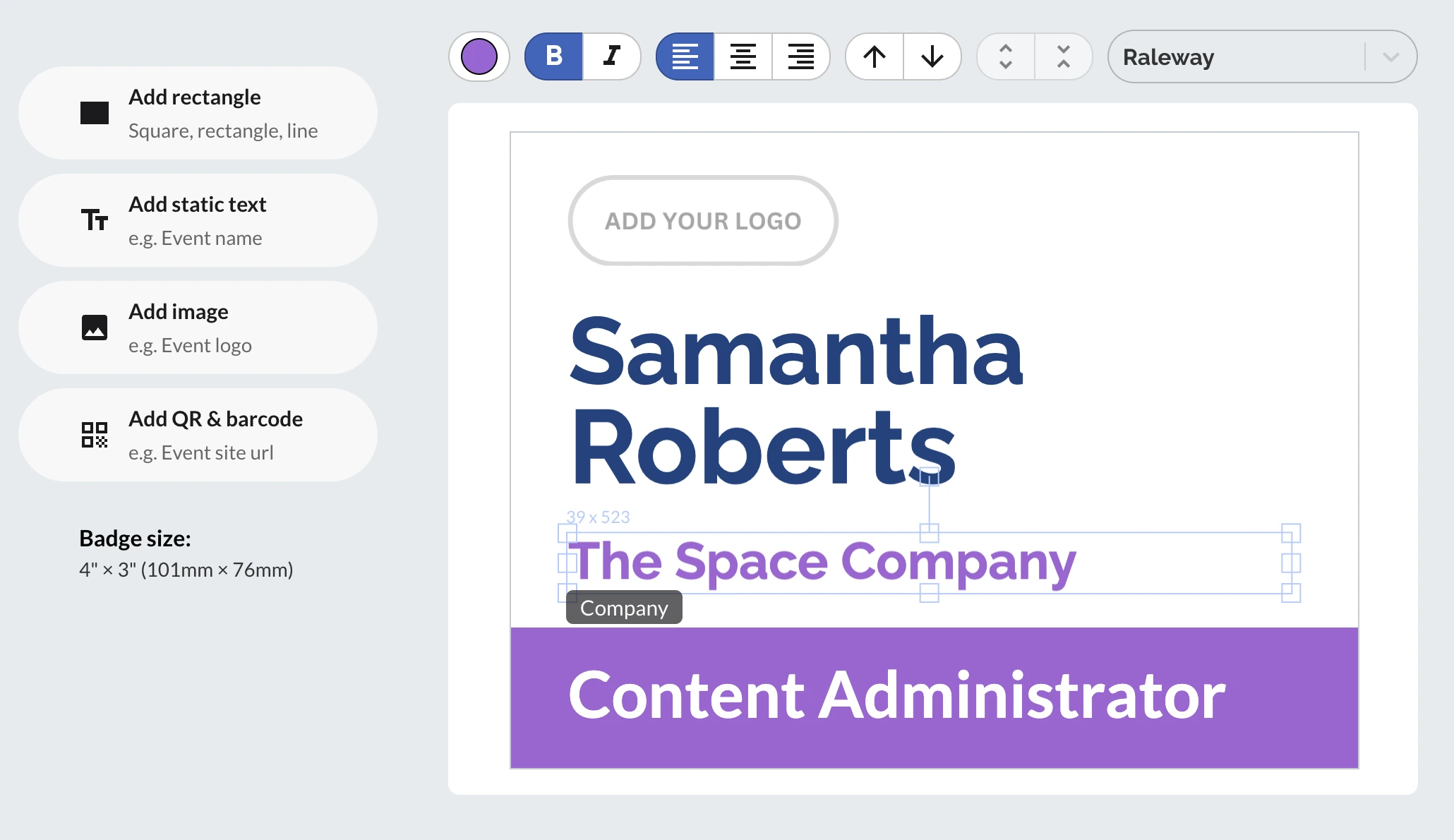
- Tweak styling: change colours, fonts, and spacing to match your branding.
- Add more dynamic fields: drop in extra columns from your CSV (company, role, ticket type, etc.).
- Add static elements: logo, event name/date, labels like “STAFF” or “SPEAKER”, simple shapes/stripes.
- Add a static QR code: drop in a QR code that’s the same on every badge — perfect for linking to your code of conduct, Wi-Fi details, venue map, schedule, feedback form, or an “emergency info” page.
💡 Tip: Preview a few attendees (short names, long names, missing company) before exporting.
Step 5 — Select Avery® 5390-compatible template
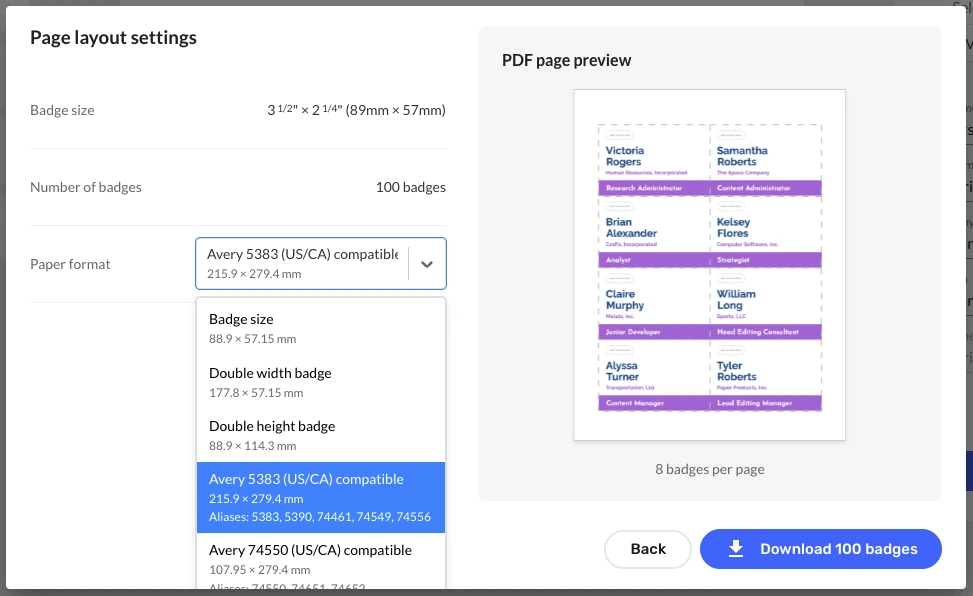
- Click Download badges in the bottom right corner of the screen.
- Select the Avery® 5383 (US/CA) compatible template from the list of paper formats. It is an alias for the Avery® 5390 template, so it is the same size and layout.
- Check the page layout preview to see how it will look.
Step 6 — Generate your print-ready PDF
Now just click Download badges one more time to generate your print-ready name badges PDF with the Avery® 5390-compatible template.
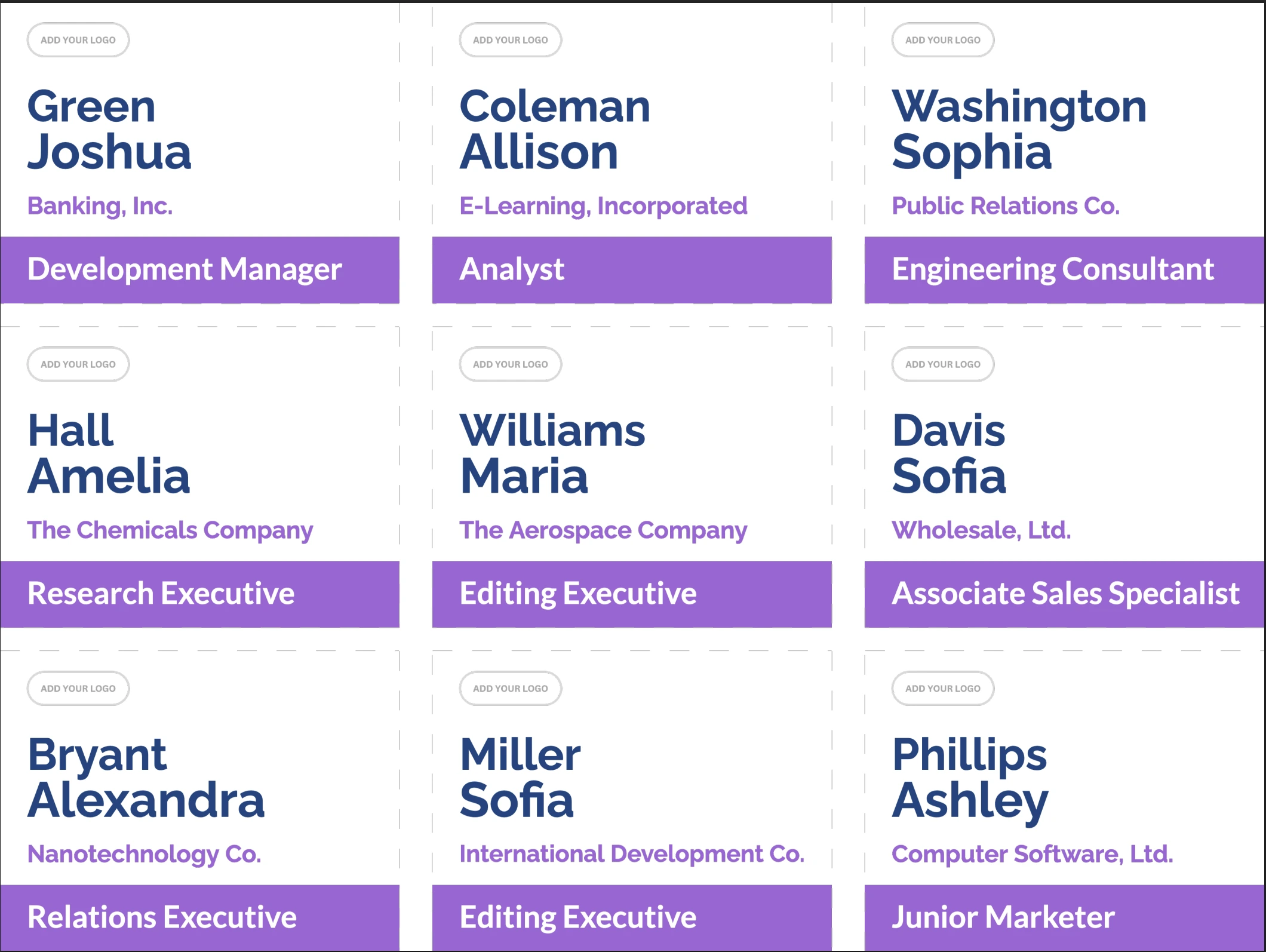
🖨️ Print without scaling
The #1 way to ruin badge alignment is letting your printer "help". When printing the PDF:
- Set scaling to Actual size or 100% (not "Fit").
- Confirm the paper size matches your PDF.
- If using badge sheets: print one test page on plain paper first, then hold it behind a badge sheet up to a light.
⚡️ Troubleshooting (fast fixes)
"My badges are misaligned on the sheet"
- Check print scaling is 100%.
- Confirm the paper size is correct in both BadgeFlow export and printer settings.
- Do a single test page before printing the whole stack.
"Some names are too long"
- Reduce the name font slightly.
- Consider splitting into First Name (big) + Last Name (slightly smaller) for extreme cases.
✅ Recommended workflow recap (the 90-second version)
- Prepare your attendee spreadsheet in Excel or CSV.
- Import the CSV or Excel file into BadgeFlow and map badge fields.
- Pick the 3 1/2" × 2 1/4" (89mm × 57mm) badge size.
- Customise the template if needed (branding + extra fields).
- Select the Avery® 5390-compatible template.
- Export a print-ready PDF → print at 100%.
FAQ
Does this work for onsite badge printing?
Yes. If you can export a fresh CSV or Excel (or maintain an updated attendee list), you can regenerate a new PDF quickly. See how developer meetup organisers handle onsite badge printing for a practical example.
Can I include QR codes on badges (for check-in or lead scanning)?
Yes — if your attendee data includes a unique value (e.g., order ID, attendee ID, or a custom unique code), you can place it on the badge as a QR/barcode field.
Does BadgeFlow support other Avery®-compatible name badge templates?
Yes. Besides Avery® 5390-sized layouts, BadgeFlow supports many other Avery®-compatible name badge templates. See our guide on Avery®-compatible name badge templates for events for sizes, matching products, and how to pick the right template.