
Bizzabo badge printing: features, onsite options, and export-based workflows
If you’re researching Bizzabo badge printing, you’re usually trying to answer one practical question: how do you get accurate, professional badges into attendees’ hands without turning check-in into chaos?
The short version is this: Bizzabo publicly positions badge printing as part of a broader onsite operations workflow tied to registration, check-in, tracking, and event data. But depending on your event setup, budget, permissions, and urgency, the best route is not always the same. For some teams, the right answer is a fully onsite Bizzabo-led flow. For others, it is much simpler to export attendee data, clean it up, and generate print-ready badges before the event.
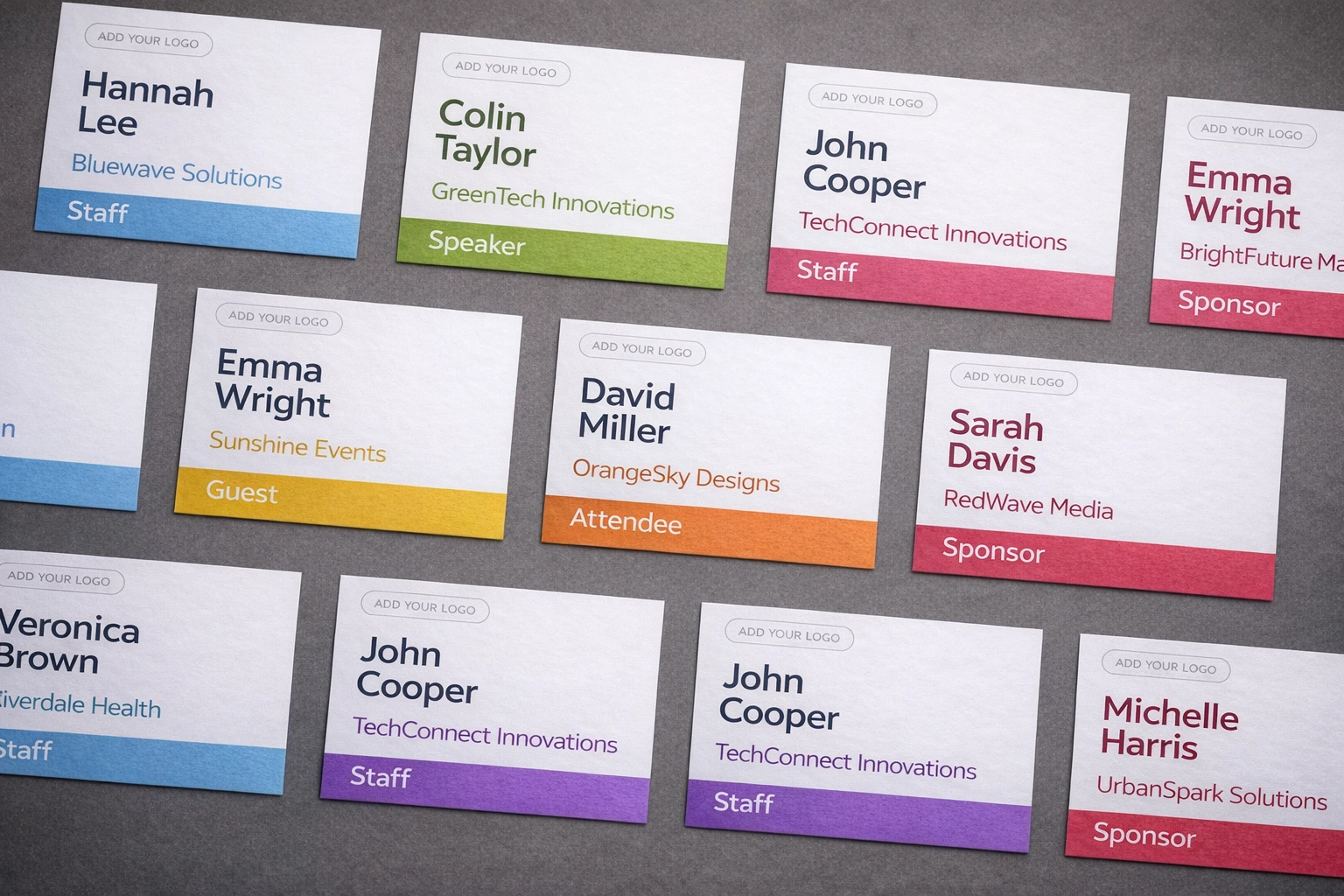
Quick answer: common meanings of “Bizzabo badge printing”
When people search for Bizzabo badge printing, they usually mean one of three things.
First, they may mean Bizzabo onsite check-in badge printing: attendees arrive, scan a code or check in with staff, and their badge prints on demand.
Second, they may mean a broader onsite services setup: not just printed inserts, but self-service kiosks, badge printer rentals, reprints, onsite support, and a full registration-and-arrival workflow.
Third, they may simply mean: “How do I get my attendee list out of Bizzabo and turn it into clean, printable badges?” In that case, you may not need a heavy onsite hardware workflow at all. A simpler path is often to export attendee data and follow a spreadsheet-based badge workflow like our guide on How to Print Name Badges from Bizzabo.
What Bizzabo publishes about onsite badge printing and operations
Bizzabo’s public content frames badge printing as part of a connected onsite system, not as an isolated print task. Its badge-printing and onsite-operations content emphasizes registration, check-in, lane design, self-service kiosks, mobile check-in, on-demand printing, reprints, attendee tracking, and operational support.
That matters because the phrase Bizzabo badge printing features usually means more than “can it print a name badge?” In practice, it often includes things like express check-in flows, self-service check-in, live badge reprints, and hardware or staffing support around the entire arrival process.
Bizzabo also positions Klik SmartBadges as part of larger-scale onsite experiences, especially for conferences that need fast throughput, branded badges, or a more integrated check-in setup.
So if you are comparing Bizzabo with a simpler workflow, the real question is not “Does Bizzabo have badge printing?” The better question is: Do you need an onsite operations stack, or do you just need reliable badges from your registration data?
Your options
Onsite services/hardware route (what to plan for)
Choose the onsite route when you expect a lot of same-day change: walk-ins, last-minute role changes, speaker swaps, badge corrections, lost badges, VIP arrivals, or high-volume traffic in short time windows.
But onsite printing is not just “buy a printer.” You need workflow design: lane setup, exception handling, badge stock, redundancy, staff training, and a plan for reprints. If you are running a large event with live changes all day, this route can make sense. If not, it may be more complexity than you need.
Export route (CSV/Excel) for pre-printing
For many teams, the easiest route is still the most practical one: export attendee data from Bizzabo, clean it up, design the badge, and print ahead of time. This is the workflow covered in our Bizzabo badge export guide.
This route is especially strong when most attendees are known in advance, you want branded badges rather than basic thermal labels, or you want more control over layout, stock, and print testing.
It is also the simplest route for teams already working in spreadsheets. If your event data is being reviewed or cleaned in Excel anyway, our guides on name badges from Excel and how to print name tags from Excel fit naturally into the same workflow.
API route (when UI export is blocked)
Sometimes the blocker is not printing. It is access. If your team cannot get the export you need from the Bizzabo UI, an API-based route may be the fallback.
This is not the first choice for non-technical event teams. But it can help when export permissions are limited, you need to automate badge generation, or you want to pull registration data into a more controlled workflow.
The practical rule is simple: use attendee or registrant data when you want one badge per registered person, and treat broader contact exports carefully if they may include people you do not actually want in the badge run.
Step-by-step: export → tidy data → design → print
Start with the most badge-ready export you can get. In most cases, that means attendees or registrants rather than a broad contact list. Export to CSV or Excel.
Then tidy the file. Remove columns you will not print. Check how names are stored. Confirm whether company, title, ticket type, and custom fields are actually present in the export. Standardize casing if needed.
If you need help with spreadsheet cleanup before badge generation, our Name Badges From Excel guide is the best internal companion article to link here because it covers the data-hygiene step that usually prevents badge mistakes later.
Next, design the badge around real operational needs, not just aesthetics. If the badge will be scanned, make sure your export contains a unique attendee identifier and map that to a QR code or barcode field. If you are still deciding on the physical format, our conference badge size guide helps you choose between common layouts like 4×3 and 4×6.
For layout and readability, link naturally to How to Design Conference Name Badges, especially if the reader is likely comparing different badge formats or trying to make speaker, sponsor, and VIP badges easier to read onsite.
Then generate a print-ready PDF and test it on the actual stock and printer you plan to use. That test print matters more than most teams expect. The real risk is rarely “can we generate a badge?” It is “will it print correctly on the actual day, on the actual stock, at 100% scale?”
Checklist: what to print (name/company/role), what not to print (PII), and QR/barcode strategy
At minimum, most event badges need:
- attendee name,
- company or organization,
- role or title when useful,
- attendee type or access tier when relevant,
- and one machine-readable unique identifier if scanning is part of your workflow.
You should usually avoid printing:
- personal email addresses unless there is a clear operational reason,
- phone numbers,
- internal notes,
- or any field attendees did not expect to see on a public badge.
For QR and barcode strategy, the main rule is not “QR versus barcode” in the abstract. It is: use a short, unique ID that maps back to the attendee record in your system. That keeps badges cleaner, scanning faster, and privacy risks lower.
For deeper guidance, this is the best place to link to QR Codes on Conference Badges and QR Codes & Barcodes on Name Badges, since both articles support the exact operational questions readers have at this stage.
Troubleshooting: long titles, casing, reprints, and late registrations
Long titles are one of the fastest ways to make a badge look amateur. Do not solve this only at design time. Solve it in the data first. Shorten overly verbose job titles, standardize capitalization, and decide what gets priority on the badge. Name usually wins. Company usually comes next. Role can be smaller or dropped for some badge types.
If you are debating Word mail merge versus a badge-first workflow, remember what usually breaks under pressure: changes. That is exactly why this article should link contextually to Mail Merge Name Tags vs Online Badge Generator. It reinforces why spreadsheet-to-badge workflows are usually easier to update when attendee data changes.
For reprints and late registrations, you have two sensible models:
- Mostly pre-print, with a small onsite exception flow for walk-ins, corrections, and replacements.
- Fully on-demand onsite printing if same-day changes are constant and check-in speed is mission-critical.
If the reader is cost-sensitive, a natural supporting link here is Printing Event Badges on a Budget, because budget and operational complexity are usually part of the same decision.
Final take
So, what are Bizzabo badge printing features in practice?
Publicly, Bizzabo positions badge printing as part of a connected onsite operations system: registration, check-in, kiosks, on-demand printing, reprints, tracking, smart badges, and onsite support.
But many teams searching this topic do not actually need the whole onsite stack. They need clean attendee data, a reliable badge layout, and a fast path to print-ready output. In that case, the export route is often the better operational answer: export attendees from Bizzabo, clean the spreadsheet, design the badge, generate a print-ready PDF, and keep a small reprint path for exceptions.
If that is your situation, the most useful next reads are: How to Print Name Badges from Bizzabo, Mail Merge Name Tags vs Online Badge Generator, and Name Badges From Excel. Those three move readers naturally from research mode into execution mode.