
QR Codes on Conference Badges: Check-In, Session Scanning, and Sponsor Lead Retrieval (What to Encode)
If you’re running a multi-track conference with thousands (or tens of thousands) of attendees, QR codes on badges can make check-in faster, access control more reliable, and sponsor lead retrieval less chaotic. This guide covers the three main use cases, what to encode (and what to avoid), plus practical print tips so your codes scan reliably on-site.
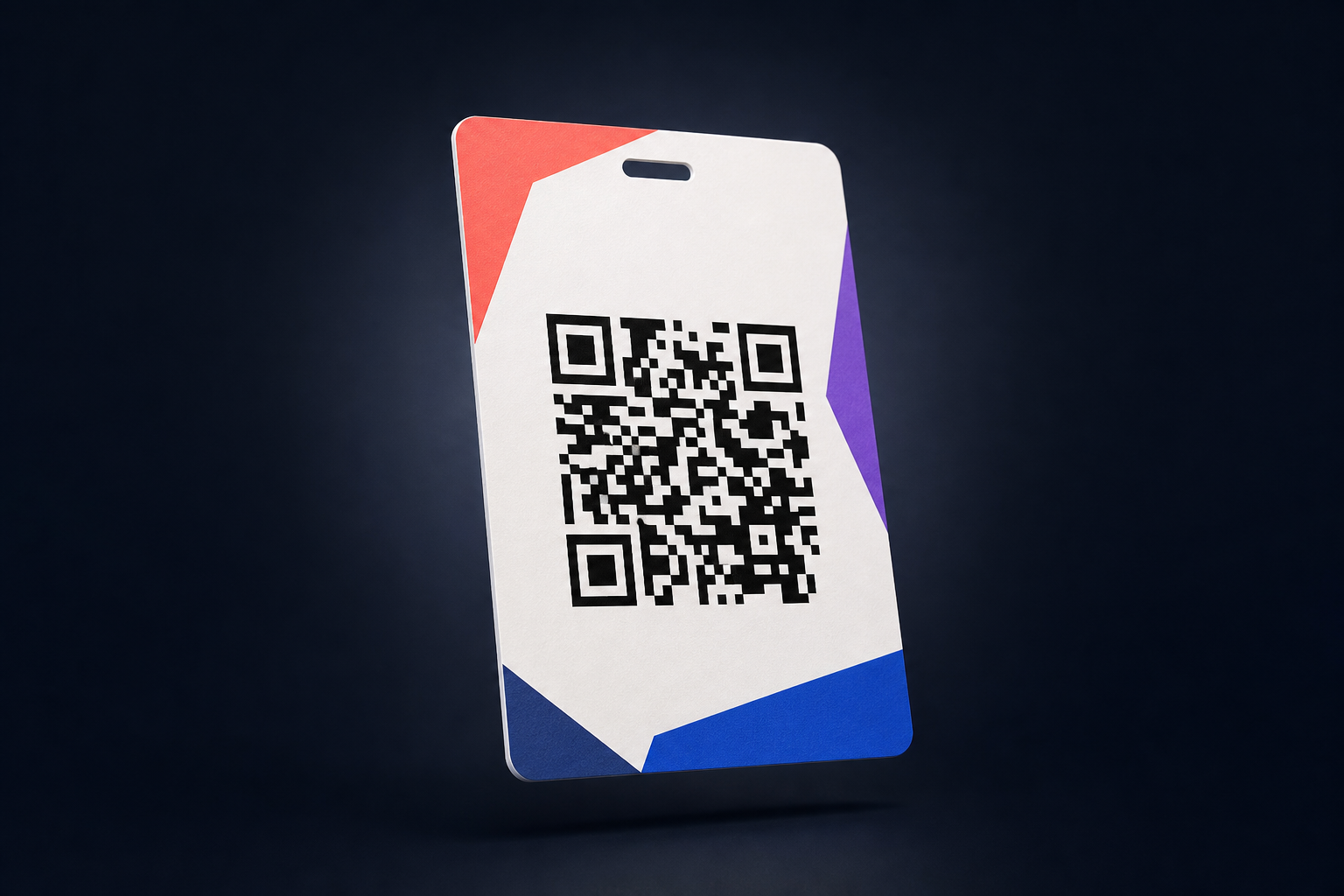
Why QR codes on badges became the default for big conferences
At scale, you’re optimizing for three things:
- Speed at the door (reduce queues)
- Reliable tracking (sessions, workshops, VIP zones)
- Sponsor ROI (lead retrieval that actually works)
A QR code on a badge is the simplest way to connect a physical person to a digital record—without relying on name search, manual checklists, or fragile “who’s on which list” workflows.
If your badge process starts in a spreadsheet (as most do), an online generator like BadgeFlow lets you bring attendee data in, place a QR on the badge, and export a print-ready PDF in minutes.
The 3 main use cases (and what the QR should do)
1) Fast check-in at registration
Goal: scan → mark as arrived → print/hand over badge (or validate pre-printed badges).
Best practice: encode a stable, unique attendee identifier (not the attendee’s personal data). Your check-in system should look up that ID and pull the person’s record.
This is faster than searching names, avoids spelling issues, and scales across multiple check-in desks.
2) Session scanning and access control
Goal: scan at room entrance → verify access → optionally record attendance.
Common scenarios:
- paid workshops
- VIP lounges
- limited capacity sessions
- track-based access (e.g., “Expo only” vs “Full pass”)
Best practice: keep the badge QR constant (same code everywhere). Your access logic lives in the scanner/app (which sessions they can attend), not inside the QR code itself.
3) Sponsor lead retrieval
Goal: attendee opts in → sponsor scans → sponsor gets a lead record instantly.
Sponsors typically want:
- clean, structured lead data
- fewer “fake scans”
- compliance-friendly consent
Best practice: encode an attendee ID (or lead token), then let your lead retrieval workflow decide what data to share (and whether consent is required).
What should a conference badge QR code encode?
There are two correct patterns. Which one you choose depends on your setup and privacy requirements.
Option A (recommended): Encode a unique ID (lookup key)
This is the most scalable and privacy-safe approach.
Examples of what to encode:
ATT-00048392(attendee ID)REG-8F3A9C2D(registration token)- a UUID like
7d9b2f0e-...
Pros
- minimal personal data on the badge
- works with any check-in or lead retrieval system that can look up a record
- easy to invalidate/rotate if leaked
Cons
- requires a database/system to resolve IDs
Option B: Encode a URL that resolves the attendee record
Example:
https://your-event.com/checkin?t=REG-8F3A9C2D
Pros
- easy for volunteers: scan opens a page
- good for lightweight setups
Cons
- URLs can reveal event tooling and are easier to misuse if not protected
- requires secure token design (short-lived, non-guessable)
What you should avoid encoding (especially at large events)
To keep privacy, security, and compliance sane, avoid putting raw personal data directly inside the QR code:
- full name
- email address
- phone number
- company + title + email
- anything sensitive (dietary needs, accessibility notes, etc.)
Even if your audience “doesn’t care,” a photo of a badge is enough to extract that data forever.
The minimum viable payload for most conferences
If you want one approach that works globally for large events, use this:
Encode: a single field → Unique Attendee ID / Registration Token
Everything else should be pulled from your check-in / lead retrieval system.
If your current process is “Excel → Word → Mail Merge,” you’ll move faster (and with fewer formatting disasters) by switching to a badge generator workflow.
Related: Name badges from Excel (step-by-step)
QR code size, placement, and print quality (so scanning doesn’t fail)
The best QR payload in the world doesn’t matter if it won’t scan in real life.
Practical print rules for high scan rates
- Use enough physical size: don’t cram a tiny QR in a corner. Bigger is more forgiving.
- High contrast: dark QR on a light background.
- Quiet zone matters: leave margin around the QR (don’t place it flush against borders or graphics).
- Avoid glossy reflections: badge holders can reflect overhead lights—place the QR so it’s not under the worst glare zone.
- Test with real devices: scan under venue lighting, not on your laptop screen.
Placement tips that work at conferences
- Put the QR on the lower half of the badge (easy for staff to scan while worn)
- Keep it away from lanyard clips, folds, or badge holder seams
- If you have double-sided badges, keep the QR on the side that will face outward most of the time
BadgeFlow is built around print-ready PDFs, so you can preview and test scan before you send anything to printers.
Privacy, consent, and attendee tracking without the drama
If you’re scanning for sessions or sponsors, you’ll want to be clear about:
- what you’re tracking (attendance counts vs identity)
- why you’re tracking (access control, capacity planning, lead sharing)
- who gets the data (organiser only vs sponsors too)
- how opt-in works (especially for sponsor lead retrieval)
A simple best practice: use a badge QR that resolves to an ID, let sponsors receive data only after attendee consent, and keep logs and retention policies consistent across regions.
(Always confirm with your legal/compliance approach for your jurisdictions and data flows.)
A simple spreadsheet setup for QR badges
In your attendee sheet, add:
first_namelast_namecompanyroleticket_type(Attendee/Speaker/VIP/Staff)qr_token(unique per person)
Then in your badge template:
- Print the name/company fields as text
- Generate the QR from
qr_token
That’s it. No complicated mail merge, no fragile Word layouts, no manual reformatting.
For a fuller column-by-column structure, use the attendee spreadsheet template for large conferences.
Common QR badge mistakes (that cause queues)
- Encoding personal data (privacy risk + messy sponsor workflows)
- Tiny QR codes (scan failures → longer lines)
- Low contrast designs (brand gradients behind the QR)
- No on-site test (works in office lighting, fails at venue)
- No exception workflow (name change, reprint, duplicate registration)
How BadgeFlow helps with QR code conference badges
BadgeFlow is designed for the workflow most organisers actually have: a spreadsheet.
With BadgeFlow you can:
- upload attendee data
- map fields into badge templates
- generate QR codes from a column (like
qr_token) - export a clean print-ready PDF for bulk printing or on-site printing
FAQ
What’s the best thing to encode in a badge QR code?
For most conferences, encode a unique attendee ID / registration token and look up everything else in your system.
Should I encode the attendee’s email in the QR code?
It’s usually better not to. Emails are personal data and a badge can be photographed. Use an ID/token instead.
Should the QR code be a URL or just an ID?
Both can work. For large events, an ID/token is more flexible and privacy-safe. A URL is convenient for lightweight workflows but needs secure tokens and access control.
Can sponsors scan the QR code and instantly get lead details?
Yes—if you build/choose a lead retrieval workflow that resolves the token to a record. Sharing personal data should be consent-based.
How big should the QR code be on a badge?
Bigger is safer. Small codes cause scan failures under bad lighting, glossy holders, and fast-moving queues. Always test with real phones at realistic distances.
What if someone screenshots or copies the QR code?
That’s why you should encode a non-guessable token and be able to invalidate it if needed. Avoid embedding personal data.
Can I generate unique QR codes from Excel?
Yes—add a column with unique values (IDs/tokens) and generate QR codes from that field in your badge layout.