
Create and Print Name Badges From Excel
Direct workflow: keep one attendee per spreadsheet row, import the Excel or CSV file into BadgeFlow, map each column to a badge field, choose a template, optionally map QR-code or barcode data, and export a print-ready PDF. For a neutral comparison of Word, fixed sheets and badge tools, see three methods for printing name tags from Excel.
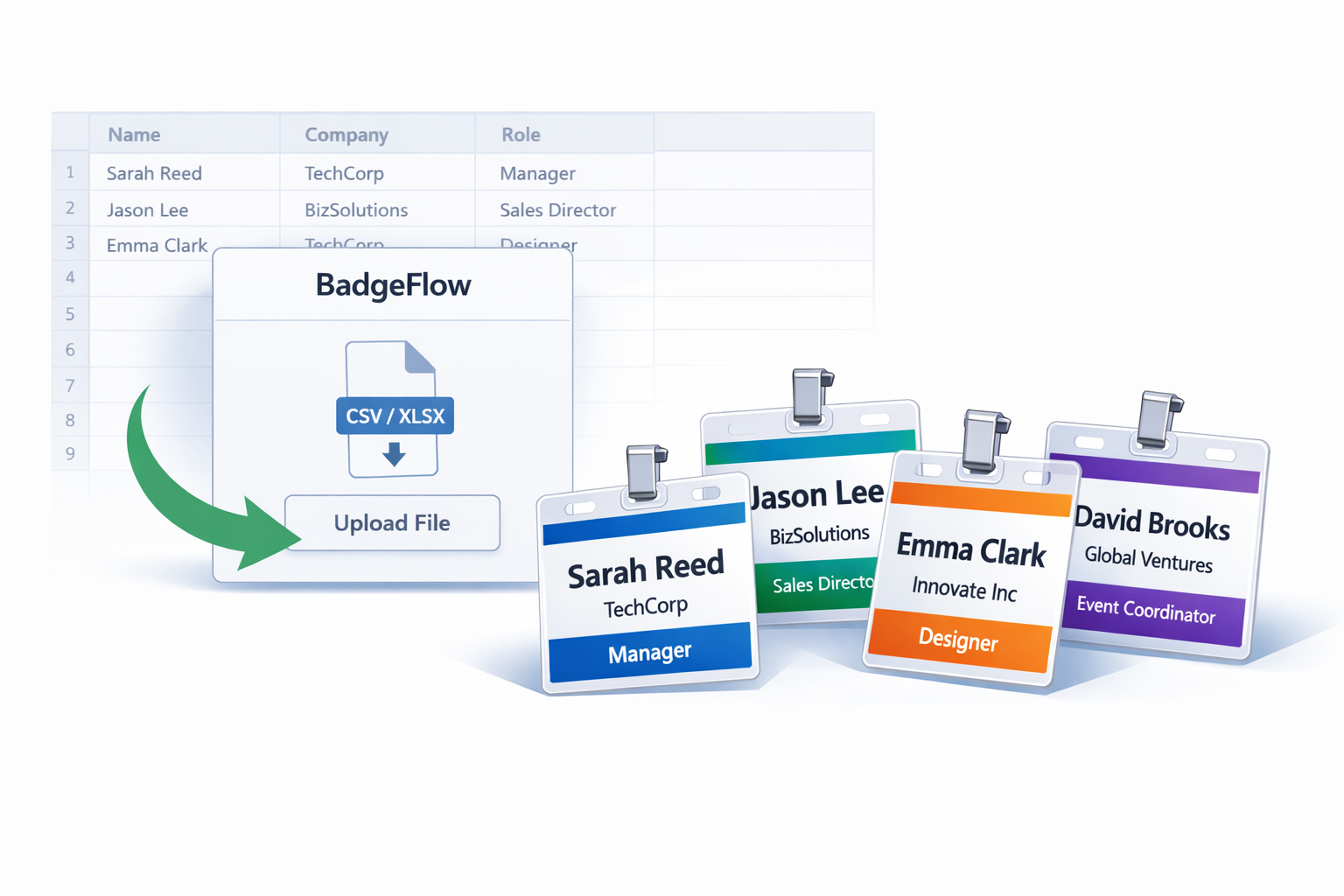
BadgeFlow is a simpler way to turn your Excel attendee list into clean, professional name badges—without wrestling with document templates. Upload your spreadsheet, map columns, choose a badge layout, and export badges that are ready to print.
✅ Best for: meetups, conferences, workshops, corporate events, school events, hackathons, and any situation where you already have a guest list in Excel.
Why "name badges from Excel" is harder than it should be
Excel is great for storing data—names, companies, roles, table numbers—but it's not built for design and print layouts. Common problems when using Excel + Word/Docs workflows:
- Mail merge complexity: one wrong setting and spacing explodes.
- Inconsistent data: missing last names, extra spaces, weird capitalization.
- Manual edits: last-minute changes mean redoing exports.
- Print alignment issues: badges shift, cut lines don't match, margins are off.
BadgeFlow flips the workflow: spreadsheet in → badges out, with a step-by-step, data-driven process.
If the final list changes at the venue, generate only the corrected or new badge and follow a controlled onsite badge printing and reprint workflow. BadgeFlow creates the print-ready file; it does not automatically trigger printing from attendee check-in.
How to make name badges from Excel using BadgeFlow
1) Prepare your Excel sheet (2 minutes)
Create a simple table with one attendee per row. Typical columns:
- Name
- Company
- Role (or Title)
- Optional: Team, Country, QR, Dietary, Table
💡 Pro tip: Keep headers short and clear. "Company" is better than "Company / Organization Name".
2) Export your Excel file
BadgeFlow supports any Excel export format—.xlsx, .csv, or .xls.
In Excel:
- File → Save As → choose your preferred format
Use whichever format works best for your workflow—they all work seamlessly.
3) Upload the file to BadgeFlow
Go to BadgeFlow and upload your Excel/CSV attendee list.
4) Map columns to badge fields
BadgeFlow will detect your headers (like "Name", "Company", "Role") and let you match them to badge fields.
This is where the "magic" happens:
- If a column is missing, you can leave that field blank.
- If a column has messy formatting, you can quickly spot it in preview.
5) Choose a badge design and preview
Pick a layout (for example: large name, smaller company, role line). Then preview multiple badges to confirm:
- Long names don't overflow
- Company names wrap nicely
- Spacing and font sizes look balanced
6) Export badges for printing
Once the preview looks good, export print-ready badges in a print-friendly PDF file. Then print in-house or send to a print shop.
💡 Pro tip: Print a single test page first—especially if you're using perforated sheets or specific badge stock.
Best practices for spreadsheet-driven badge printing
Clean your data quickly
Before exporting from Excel, do a fast cleanup:
- Remove trailing spaces:
TRIM() - Standardize capitalization: consistent "Title Case" for names
- Fill blanks where needed (e.g., Company = "Independent")
Handle long company names gracefully
If your attendee list includes long org names, consider adding a shorter column in Excel:
Company_Short(e.g., "International Business Machines" → "IBM")
Then map Company_Short to the badge.
Include QR codes (optional)
If you want scannable badges for check-in or lead capture, add a column like QR_URL or Profile_Link. Even if you don't use it now, it's easy to expand later.
Who is BadgeFlow for?
BadgeFlow works especially well when:
- You already have registrations in Excel / Google Sheets
- You need badges for any number of attendees
- You expect last-minute edits and want an easy re-export
- You want consistent design without manual layout work
Common BadgeFlow scenarios:
- Developer meetups & hackathons
- Corporate offsites & internal events
- Conferences & trade shows
- Community workshops
- University events
FAQs: Name badges from Excel
Can I use an Excel file directly?
Yes! BadgeFlow supports Excel files directly (.xlsx, .xls), as well as CSV and Google Sheets. Simply upload your file and the app will handle the rest.
What columns should my Excel sheet include?
Start with: Name, Company, Role. Add barcode or QR if you need them.
What if I have duplicate names?
Add a unique column like Registration_ID or Email (even if it's not printed) to keep records clean.
How do I handle last-minute attendee changes?
Update your Excel sheet, re-export, re-upload, and regenerate badges. Spreadsheet-first workflows make this fast.
Can I print badges on any paper size?
Yes! BadgeFlow supports standard formats like A4, Letter, or custom dimensions. Just export the PDF and print using any printer you have on hand.
Is BadgeFlow free to use?
Yes! During the beta phase, you can create unlimited badges at no cost.