
Mail Merge Name Tags vs Online Badge Generator: Which Is Faster?
If you're searching for "mail merge name tags" or "make badges in Word vs online", you likely want one thing: print-ready badges fast, without layout glitches or last-minute chaos.
Mail merge in Microsoft Word can work, but it's often slow and error-prone for real event badges. This guide compares the actual workflows and shows when an online badge generator like BadgeFlow is the faster option.
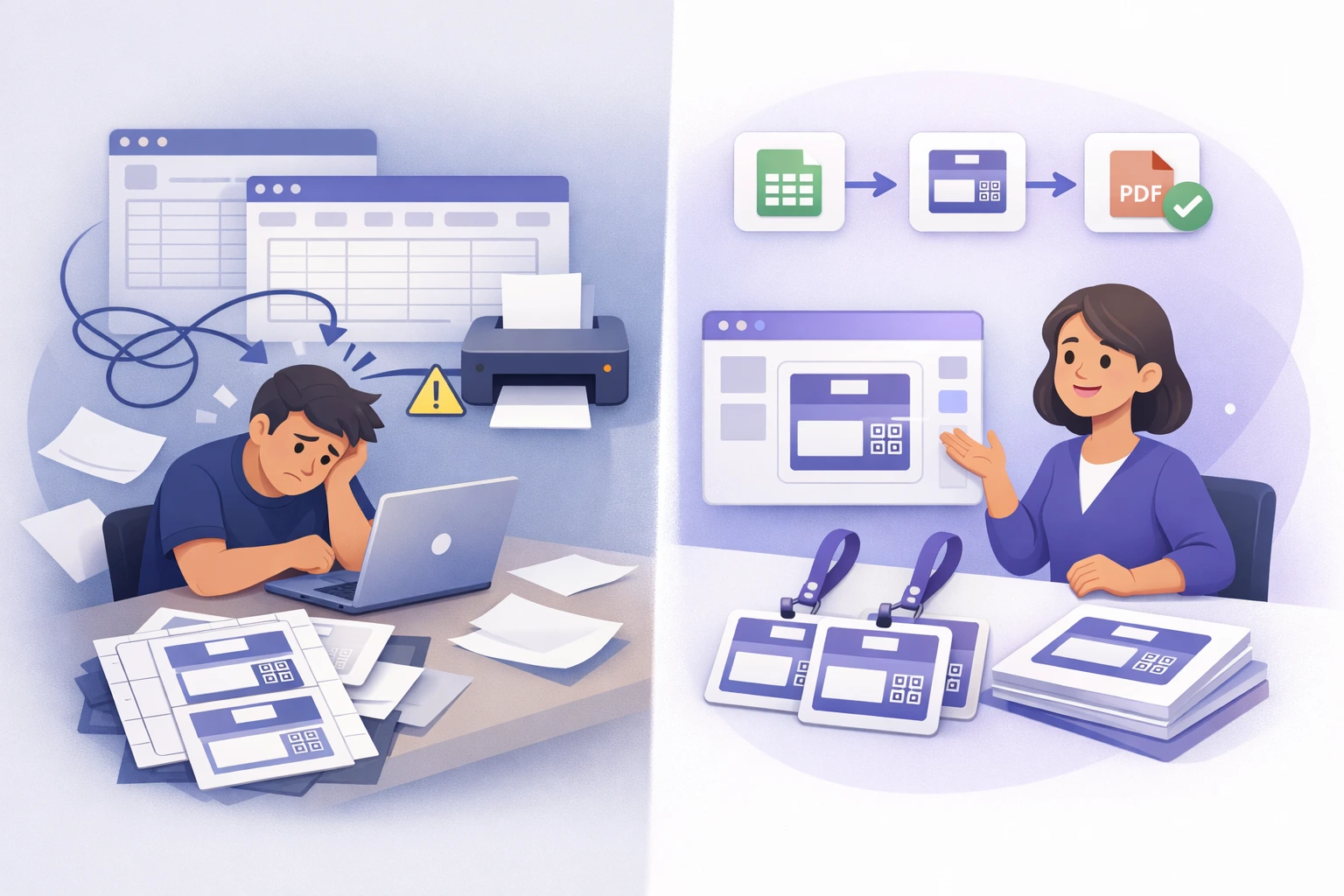
What "Mail Merge Name Tags" in Word Really Involves
Word mail merge was designed for letters and labels. You can adapt it to badges, but event badges usually require more: larger names, logos, QR codes, consistent alignment, and quick edits.
Typical steps for Word mail merge name tags
- Prepare an attendee list (usually Excel): Name, Company, Role, QR data, etc.
- Set up Mail Merge in Word and connect your spreadsheet as the data source.
- Build the badge/label layout (often as a label grid or table).
- Insert merge fields and copy formatting across every label.
- Preview results and fix overflow/alignment issues (long names, long titles, inconsistent casing).
- Finish the merge, export to PDF, and run test prints.
- Repeat when you get edits or late registrations.
That last point is the biggest problem: Word mail merge pipelines tend to be fragile when the data changes. And event data always changes.
Why Word Mail Merge Is Often Slower for Event Badges
1) Word labels aren't badge-friendly
Labels in Word behave like grids/tables. That's fine for addresses, but badges usually need precise layout control and readable typography at a distance. Learn more about badge design best practices.
2) Small changes cause big rework
A typo fix, a walk-in attendee, or a sponsor request like "add company names" can force you to re-run merges, re-check alignment, and re-test prints—right when you have the least time.
3) Too many tools in the chain
Excel → Word → merged output → PDF → printer. Every handoff is another point where something can drift: formatting, margins, fonts, page scaling, printer settings.
The Faster Alternative: Online Badge Generator Workflow
A dedicated badge tool flips the process to spreadsheet in → print-ready badges out.
With BadgeFlow, the process is built specifically for event badges:
- Upload your Excel attendee list
- Pick a template and design your badge layout
- Export a print-ready PDF instantly
- Update the spreadsheet and re-generate quickly as changes come in
Mail Merge vs Online Badge Generator: Speed Comparison
| Task | Word Mail Merge Name Tags | Online Badge Generator (BadgeFlow) |
|---|---|---|
| Initial setup | Slow: label settings, layout, merge fields, "Update Labels", test prints | Fast: upload Excel, choose template, export PDF |
| Handling long names/titles | Often manual fixes and repeated previews | Designed for badge layouts; faster iteration |
| Branding (logos, colors) | Possible, but alignment/consistency takes time | Built for branded templates and consistent output |
| QR codes / barcodes | Doable, but setup is complex and fragile | Supported in a badge-first workflow |
| Last-minute changes | Re-run merges, re-check layout, re-test print | Update sheet → re-generate PDF quickly |
In practice: Word mail merge is "okay" when nothing changes and badges are simple. Online generators win when you need speed, consistency, and easy revisions.
When Word Mail Merge Is Still a Good Choice
Mail merge can be fine if:
- Your badges are simple (few fields, minimal design)
- You already have a proven Word template and plenty of time for test prints
- You don't expect last-minute changes
But if you're searching "make badges in Word vs online" because Word is slowing you down, it's usually time to try a badge-first workflow.
FAQ: Mail Merge Name Tags vs Online Badge Generator
1) What are "mail merge name tags" in Word?
It's using Word's Mail Merge feature to pull attendee data (often from Excel) into a label/badge layout and generate the final output for printing.
2) Why do Word mail merge badges misalign when printing?
Badge layouts in Word typically rely on label grids/tables and printer margins. Small differences in printer settings, scaling, or page margins can shift alignment.
3) Is Word mail merge good for event badges with logos?
It can work, but adding branding often increases layout complexity and makes changes slower—especially when you're producing many badges per page.
4) Can I make badges from Excel without mail merge?
Yes. Badge generators like BadgeFlow are built for exactly that: upload Excel → design → export print-ready PDF. Start here: Name Badges From Excel.
5) Which is faster overall: mail merge name tags or online?
For simple, unchanging labels, mail merge can be quick. For event badges (branding, QR codes, multiple fields, and last-minute edits), online badge generators are usually faster because they reduce setup and rework.
6) Does BadgeFlow require an account?
No—BadgeFlow is designed to be quick to try, including a no-signup workflow.
7) Can BadgeFlow handle last-minute walk-ins and edits?
Yes. You can update your spreadsheet and regenerate the PDF quickly—ideal for on-site changes.
8) What's the best way to print badges reliably?
Use a print-ready PDF, test one page on the target printer, and confirm scaling is set to 100%. For more tips: Printing Event Badges on a Budget.