
Eventbrite Badge Printing Options for Different Event Workflows
Does Eventbrite print badges? Eventbrite provides registration, attendee management, check-in and data exports, but badge production is generally handled through marketplace or partner tools, onsite-provider workflows, or an attendee export converted into a print-ready PDF. The right route depends on event size, live-sync requirements, staffing and whether badges are printed before or during check-in.
This page compares those commercial and operational options. For the complete export-and-import tutorial, follow how to print Eventbrite name badges from a CSV export.
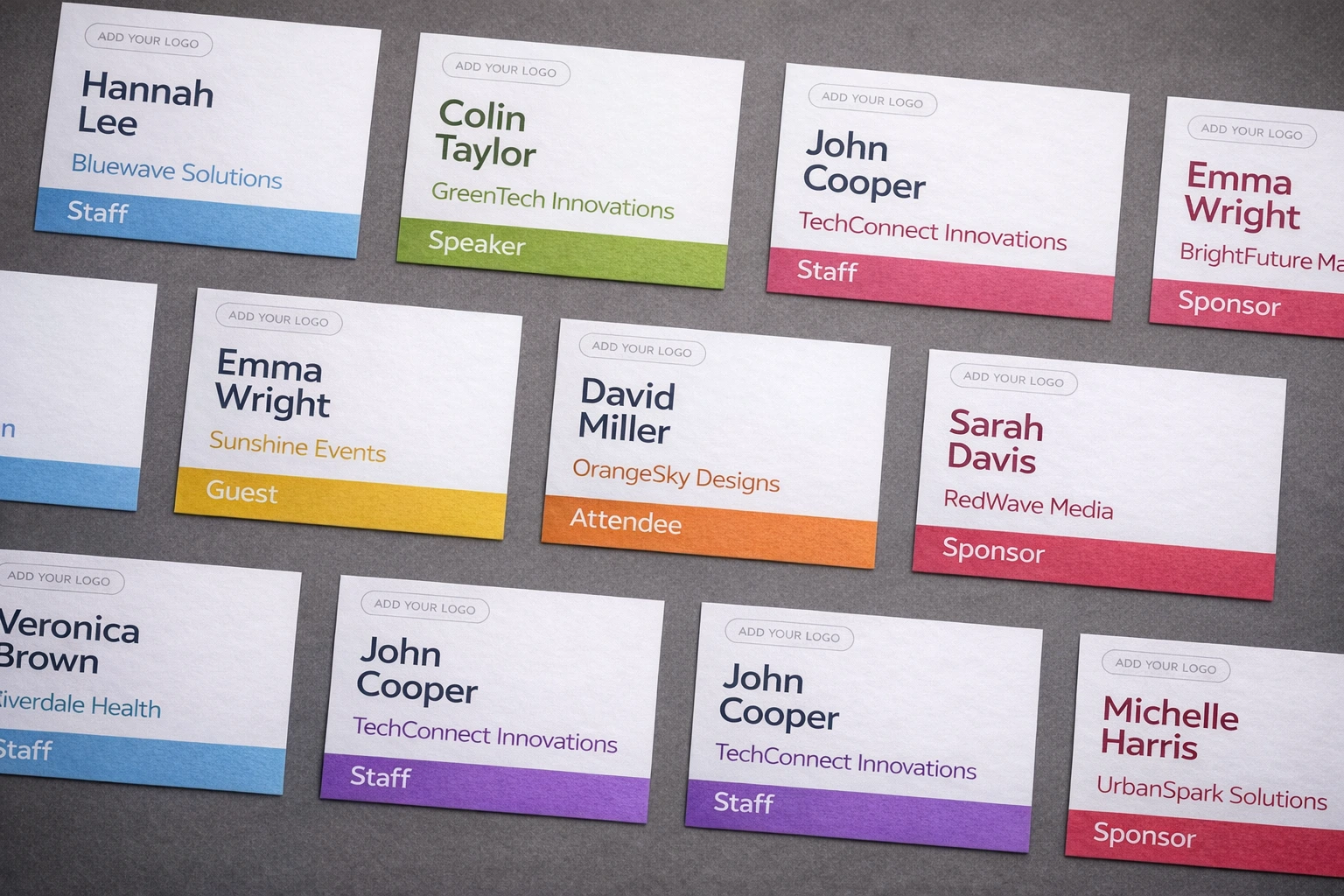
In practice, there are three main routes:
- Marketplace apps that connect to Eventbrite and add badge workflows.
- Onsite printing providers that combine check-in, scanning, printers, and staff support.
- An export → print-ready PDF workflow where you export Eventbrite data and generate badges yourself.
For very large events with complex arrival flows, the first two routes can make sense. But for most organisers who simply want branded, accurate, printable badges without enterprise setup, the third route is usually the fastest.
This guide breaks down what Eventbrite does, what it does not do by itself, and how to choose the right workflow without getting stuck in template chaos the night before your event.
Quick answer: does Eventbrite do badge printing?
Not as a simple built-in “click here to generate all attendee badges” feature for most organisers. Eventbrite itself clearly supports attendee management, check-in, exports, and an app ecosystem around tickets and onsite operations. That means badge printing is possible in the broader Eventbrite workflow, but it often happens through partner apps, specialist onsite tools, or exports rather than through a native all-purpose badge designer inside Eventbrite.
Many teams search for an Eventbrite badge printing feature expecting “choose a template, map fields, export PDF”. In practice, the workflow is usually either a marketplace app, an onsite provider, or an attendee export into a dedicated badge tool. If you only need clean badges with names, companies, ticket types, QR codes, or barcodes, the export-based route may be the least complicated path.
Option A: Eventbrite App Marketplace (what it typically provides)
Eventbrite’s App Marketplace includes a Tickets & Onsite category, which is where badge-related tools usually appear. You’ll also find listings specifically describing badge printing or attendee import from Eventbrite.
What this usually means in practical terms:
- The app connects to your Eventbrite event or account.
- Attendee records sync automatically or can be imported directly.
- You design badge layouts inside the app or provider platform.
- Badges are printed either in advance or at check-in.
This route can be attractive because it feels more “native” than CSV work. But marketplace apps are not all the same. Some focus on simple badge generation; others are broader event operations suites with scanning, mobile apps, check-in desks, or onsite hardware. That can be useful, but it can also be heavier than necessary for a straightforward badge-printing requirement.
When Option A is a good fit:
- You want direct Eventbrite integration.
- You may need live sync rather than one export.
- You are happy to learn another platform.
- You want badge printing as part of a wider onsite operations setup.
When Option A is not ideal:
- You need badges today and do not want vendor onboarding.
- You only want a print-ready PDF, not a full event-tech workflow.
- You are cost-sensitive and trying to avoid per-event platform overhead.
- You prefer to keep your design and print process simple.
If your requirement is basically “I already have Eventbrite registrations; I just need printable badges fast”, a marketplace app may be more infrastructure than you actually need.
Option B: Onsite printing providers (when it makes sense)
Eventbrite onsite badge printing becomes a different category once you move from “prepare badges before the event” to “print badges live as people arrive”. At that point you are not just buying design software. You are buying an operations workflow.
Onsite providers typically combine some or all of the following:
- Live attendee sync from Eventbrite.
- QR code or ticket scanning at the door.
- Instant badge printing on thermal or label printers.
- Self-service kiosks or staffed check-in desks.
- Support for walk-ins, reprints, or last-minute edits.
This makes sense when queue speed is mission-critical, when you have thousands of arrivals in a short time window, or when access control is more complex than “print one badge per person”. Large conferences, expos, multi-track business events, and sponsor-heavy events often benefit from this setup.
It is also the best answer when people specifically search for Eventbrite check-in app badge printing. In those cases, they often do not just want badge design. They want the badge to print because a check-in action happened. That is an onsite systems problem, not just a layout problem.
When Option B is a good fit:
- You need live badge printing at arrival.
- You expect heavy peak check-in traffic.
- You need staff, kiosks, scanners, or printer hardware.
- You need real-time attendance status tied to printing.
When Option B is not ideal:
- Your event is small or mid-sized and badges can be prepared beforehand.
- Your budget is tight.
- You only need a PDF to print on standard sheets or badge inserts.
For many teams, onsite printing sounds attractive until they realise it introduces extra moving parts: printer compatibility, network stability, staff training, badge stock, and contingency planning. That is why smaller teams often get better results by pre-generating badges and using onsite printing only where there is a clear operational reason.
For a broader budget comparison between DIY, professional services, and tool-based workflows, see Printing Event Badges on a Budget.
Option C: Export → print-ready PDF workflow (fastest for most teams)
For some organisers, the fastest route is a simple one:
- Export attendee data from Eventbrite.
- Clean the fields you actually want on the badge.
- Generate a print-ready badge PDF in a dedicated badge tool.
- Print in advance or print the final file onsite if needed.
This workflow is good because it separates registration from badge production. Eventbrite handles registration, ticketing, and attendee records. Your badge tool handles layout, field mapping, readability, and print output.
You do not need to bend a registration platform into a desktop-publishing tool, and you do not need to adopt a full onsite stack unless your event genuinely needs one. That is exactly why our existing step-by-step guide on How to Print Name Badges from Eventbrite is a practical starting point when you already have registrations and just need badges done quickly.
A good export-based workflow is especially useful when:
- You want to pre-print badges before event day.
- You need branded layouts with logos, role colours, QR codes, or barcodes.
- You want control over badge size and paper size.
- You do not want to depend on event-day integration complexity.
- You want to make last-minute edits in a spreadsheet-like workflow.
With BadgeFlow, for example, you can take the Eventbrite export, map the relevant fields, choose the right badge size, and produce a print-ready PDF without going through Word mail merge or rigid template files.
Export best practices: Attendees vs Orders
This is one of the most important choices in any eventbrite badge printing workflow.
Use the Attendees report when you want one badge per person. In most cases, this is the right starting point because badges are tied to individuals, not transactions.
Use the Orders report when order-level information matters. That can be useful if your process depends on purchaser details, payment-related context, or order metadata. But it is often the wrong starting point for badge production because one order can contain multiple attendees.
In plain English:
- Attendees report = better for badge names, titles, companies, ticket types, and per-person custom fields.
- Orders report = better for finance/admin analysis, not usually for printing one badge per human being.
If you ask custom registration questions in Eventbrite, check whether those answers live in your main attendee export or whether you need the separate custom questions export as well. That matters if you want to print items like department, table number, dietary icon, access level, or networking preferences.
Cleaning the export so badges don’t print “N/A”
Most badge-printing mistakes are not design mistakes. They are data hygiene mistakes.
Before generating the PDF, quickly clean your export:
- Delete columns you do not need.
- Rename headers so mapping is obvious.
- Replace placeholder values like “N/A”, “None”, or “-” with blanks if they should not appear on the badge.
- Standardise company names and job titles for consistent formatting.
- Check for duplicate attendees or transferred tickets.
- Make sure VIP / Speaker / Staff values are written consistently if they drive badge styling.
A good practical pattern is to create a badge-specific export copy. Keep only the fields you need, such as:
- First name
- Last name
- Full name
- Company
- Job title
- Ticket type / attendee category
- QR or barcode value
- Table number / access level / custom note
Then map those fields once and keep the structure stable for any reprints.
Designing badges for readability + scanning (QR/barcodes)
Even when your workflow starts from Eventbrite, badge design should be driven by physical readability, not by whatever fields happen to exist in the export.
Prioritise in this order:
- Name — the largest element on the badge.
- Organisation / role / attendee type — secondary information.
- Scannable code — only if the event actually uses it onsite.
- Branding — logo, colour, and supporting graphics.
If you need a code, choose it for the operational purpose:
- QR codes are useful when you want a dense code that can store or reference more data and scan easily from phone or printed surfaces.
- Barcodes can work well if your scanners or onsite workflows already expect a specific barcode format.
Do not add a code just because it looks “event-ish”. If nobody is scanning it, it is only taking space away from the attendee’s name.
For code size, quiet-zone, and data-format guidance, see QR Codes & Barcodes on Name Badges.
For large conferences that also need session scanning and sponsor lead retrieval, see QR Codes on Conference Badges.
If your badge data needs a cleaner structure before import, use the Attendee Spreadsheet Template for Large Conferences.
Likewise, do not overload small badges. If you need help choosing a size before you design, read Conference Badge Size Guide. If you want layout guidance on typography, spacing, hierarchy, and visual clarity, see How to Design Conference Name Badges.
Common pitfalls: scaling, paper stock, badge holders, and last-minute changes
Even a perfect Eventbrite export can still fail at the printer. The most common problems happen after the data stage:
1) Incorrect scaling
If the print dialogue is set to “fit to page” instead of 100% scale, badge layouts shift, cut marks move, and inserts stop fitting holders. Always test with the exact printer and settings you will use on the real run.
2) Wrong paper or inserts
A badge can be the right design but the wrong physical format. Confirm whether you are printing on plain paper for cutting, pre-perforated stock, or inserts for plastic holders. The holder size should determine the finished badge size, not the other way around.
3) Overdesigned small badges
Trying to cram full names, long job titles, company names, sponsor marks, meal indicators, access levels, and a QR code onto a tiny badge almost always reduces readability. If the attendee’s name is not visible from conversational distance, the badge is failing at its main job.
4) No plan for changes after the first print run
People register late. Names get corrected. Roles change. A speaker arrives with a plus-one. Build your workflow so you can reprint five badges quickly without rebuilding the whole file.
Decision guide: which option fits your event size and constraints
Here is the practical version.
Choose a marketplace app if:
- You want direct Eventbrite integration.
- You are comfortable adopting another event-tech product.
- You may need more than badge generation alone.
Choose an onsite printing provider if:
- You need live badge printing at check-in.
- You have high arrival volume or complex access control.
- You are prepared for hardware, staffing, and event-day operations.
Choose an export → print-ready PDF workflow if:
- You want a fast setup for most normal events.
- You want to pre-print badges or keep a simple reprint process.
- You need control over badge design, size, and PDF output.
- You want to avoid heavy onsite infrastructure unless it is truly necessary.
That is why, for most small and medium-sized conferences, workshops, meetups, trainings, and business events, the export-based workflow is a good choice.
If you already know you want the export route, start with our Eventbrite name badges walkthrough, then choose the right size in the badge size guide, and refine the layout using our design best-practices article.
And if cost is one of the main reasons you are comparing workflows in the first place, read Printing Event Badges on a Budget to see where DIY, professional services, and software-based workflows usually land.
Final takeaway
Yes, Eventbrite badge printing is possible — but usually not as a single built-in feature. In most real-world setups, you will either use a marketplace app, an onsite provider, or an export-based workflow.
For organisers who need a fast path to clean, branded, print-ready badges, exporting attendee data and turning it into a badge PDF is usually an efficient option. It keeps Eventbrite doing what it is good at — registration and attendee data — while letting a badge tool do what it is good at: layout, mapping, and reliable printing.
If that is your use case, BadgeFlow is built for exactly that middle ground: fast badge generation from spreadsheet-style attendee data, without Word mail merge, template headaches, or heavyweight event-tech setup.