
How to Print Name Badges from Whova
If your event registrations are managed in Whova, your attendee data may already be organised — but you still need clean, readable, printable badges. This guide explains the main Whova badge printing options and shows how to use an export-based workflow when you want custom layouts, flexible badge sizes, QR codes, barcodes, and print-ready PDFs.
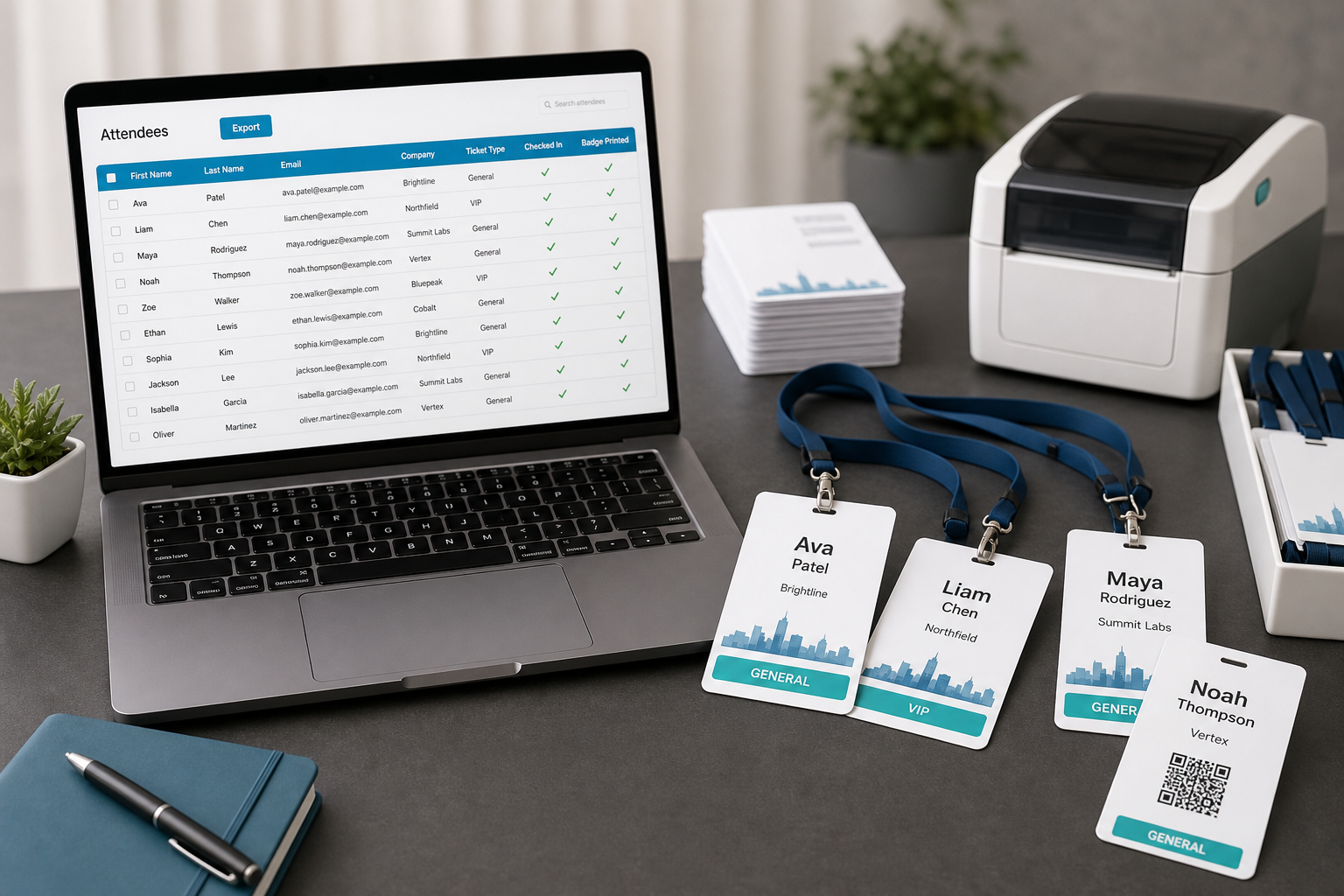
Note: BadgeFlow is not affiliated with, endorsed by, or sponsored by Whova.
What people usually mean by Whova badge printing
When organisers search for Whova badge printing, they usually mean one of two things. They either want to use Whova’s own event badge tools, or they want to get attendee data out of Whova and create printable badges in another system.
The first route is useful if your check-in process is built around Whova and you want native onsite printing. The second route is useful if your team wants a controlled PDF workflow, custom paper sizes, a specific badge holder, or a badge design that is easier to manage outside a live check-in system.
Option 1: Use Whova’s native badge printing tools
Whova’s native tools can be a good fit when you want check-in and badge printing to happen inside the same event platform. This can be useful for larger events where staff need to scan attendees, print badges at arrival, and keep check-in status updated in one place.
Use the native route when:
- Your event team already uses Whova for onsite check-in.
- You need badges to print at the exact moment of attendee arrival.
- You want check-in status and badge printing connected in the same system.
- You have the recommended hardware, permissions, and staff training in place.
This route may be more than you need if you simply want to print a batch of branded name badges before the event starts.
Option 2: Export attendee data and create badges in BadgeFlow
An export-based workflow is often simpler for organisers who want printable badge PDFs instead of a full live badge-printing station. The basic flow is:
- Export attendee or registrant data from Whova, if your event permissions allow it.
- Clean the attendee list in Excel, Google Sheets, or another spreadsheet tool.
- Copy or import the badge-ready data into BadgeFlow.
- Map the spreadsheet columns to your badge design.
- Add optional QR codes, barcodes, photos, roles, and company names.
- Export a print-ready PDF and print on your chosen stock.
This is especially useful when you want to print badges before doors open, make final layout changes quickly, or create different badge designs for attendees, speakers, sponsors, exhibitors, volunteers, and staff.
Whova native printing vs BadgeFlow PDF workflow vs print vendor
| Option | Best for | Pros | Trade-offs |
|---|---|---|---|
| Whova native badge printing | Live check-in and on-demand onsite printing | Connected to the event platform and check-in flow | Requires the right setup, hardware, permissions, and process |
| BadgeFlow export-based PDF workflow | Custom printable badges from spreadsheet data | Flexible layout, badge sizes, QR codes, barcodes, and PDF output | Not a native Whova integration or live check-in system |
| Professional print vendor | Large polished batches printed ahead of time | Professional finish and less onsite printing work | Less flexible for late changes, substitutions, and reprints |
What fields to export for name badges
A registration export often contains more data than you need. Create a badge-ready version with only the fields that should appear on the badge or drive the badge layout.
| Field | Use on badge | Tip |
|---|---|---|
| Full name | Main badge identity | Use a single clean full_name column if possible. |
| Company | Networking context | Standardise capitalisation and abbreviations. |
| Job title | Optional context | Hide it if your badge becomes too crowded. |
| Ticket type | Badge category | Useful for VIP, exhibitor, sponsor, or attendee labels. |
| Role | Operational clarity | Use visible labels such as Speaker, Staff, Volunteer, or Exhibitor. |
| Unique ID | QR or barcode value | Avoid encoding private data directly in the code. |
For a broader data structure, see Attendee Spreadsheet Template for Large Conferences.
How to clean your attendee spreadsheet before printing
Before generating badges, check the export for common formatting issues. Badge printing magnifies small data problems: a typo that looks minor in a spreadsheet becomes very visible on a lanyard.
- Remove test registrations and cancelled attendees.
- Merge first and last name into a clean full name if your badge uses one name line.
- Check long names and long company names in a badge preview.
- Standardise attendee categories such as “VIP”, “V.I.P.” and “Vip”.
- Keep a separate notes column for staff, but do not print internal notes on the badge.
- Make sure QR or barcode values are unique and scannable.
How to design Whova attendee badges in BadgeFlow
Once your export is clean, BadgeFlow can help you create a printable badge design without rebuilding the attendee list by hand.
- Choose the correct badge size based on your holder, insert, or paper stock. Use Event Badge Size if you are unsure.
- Add text fields for attendee name, company, job title, and badge type.
- Add QR codes or barcodes from a spreadsheet column when needed.
- Use larger type for names and keep secondary fields smaller.
- Preview several real attendees before printing the full batch.
- Export a print-ready PDF and test it at actual size.
For general spreadsheet badge creation, read Name Badges From Excel.
Adding QR codes, barcodes, roles, ticket types, and company names
Whova exports may include fields that are useful for badge design even if they are not meant to be printed exactly as-is. For example, a ticket type can become a visible “VIP” or “Sponsor” label. A unique attendee ID can become a QR code. A company field can be printed below the name to make networking easier.
Keep the hierarchy simple:
- Name: largest and most readable.
- Company or organisation: second most important.
- Role or ticket type: use a coloured band, label, or clear text.
- QR or barcode: keep enough white space around it for scanning.
For code-specific advice, see QR Codes & Barcodes on Name Badges.
Printing setup and common mistakes
Always test the full workflow before event day. Print at least one sheet with real data, place the insert into the holder, and scan any QR or barcode with the device your staff will actually use.
- Do not print at “fit to page” if alignment matters.
- Do not export every registration field into the badge design.
- Do not use a badge size before confirming the holder size.
- Do not encode sensitive personal information directly into visible QR codes.
- Do not wait until event morning to test stock, printer, and PDF scaling.
FAQ
Can I print name badges from Whova?
Yes. Whova has its own badge-related features, and organisers may also use attendee exports as part of a separate badge-printing workflow. The best option depends on whether you need native check-in printing or a flexible print-ready PDF workflow.
Can I export Whova attendees to create badges?
Many event platforms provide attendee or registrant exports that can be cleaned in a spreadsheet and used for badge creation. Check your Whova event settings and permissions to confirm what export fields are available for your event.
What fields should I include on Whova name badges?
Common fields include full name, company, job title, ticket type, attendee type, role, and a unique QR or barcode value if you plan to scan badges.
Can I add QR codes to Whova attendee badges?
You can add QR codes to badges if you have a suitable QR value in your attendee data. Use a unique ID, ticket reference, or check-in token rather than sensitive personal information.
Is BadgeFlow officially integrated with Whova?
No. BadgeFlow is not affiliated with, endorsed by, or sponsored by Whova. This article describes an export-based workflow for organisers who want to create print-ready badge PDFs from attendee data.
What is the easiest way to print Whova badges?
If you need live onsite badge printing inside Whova, use Whova’s native tools. If you want to create custom printable badge PDFs from exported attendee data, an export-based workflow with BadgeFlow can be simpler.