
How to Print Name Badges from RegFox
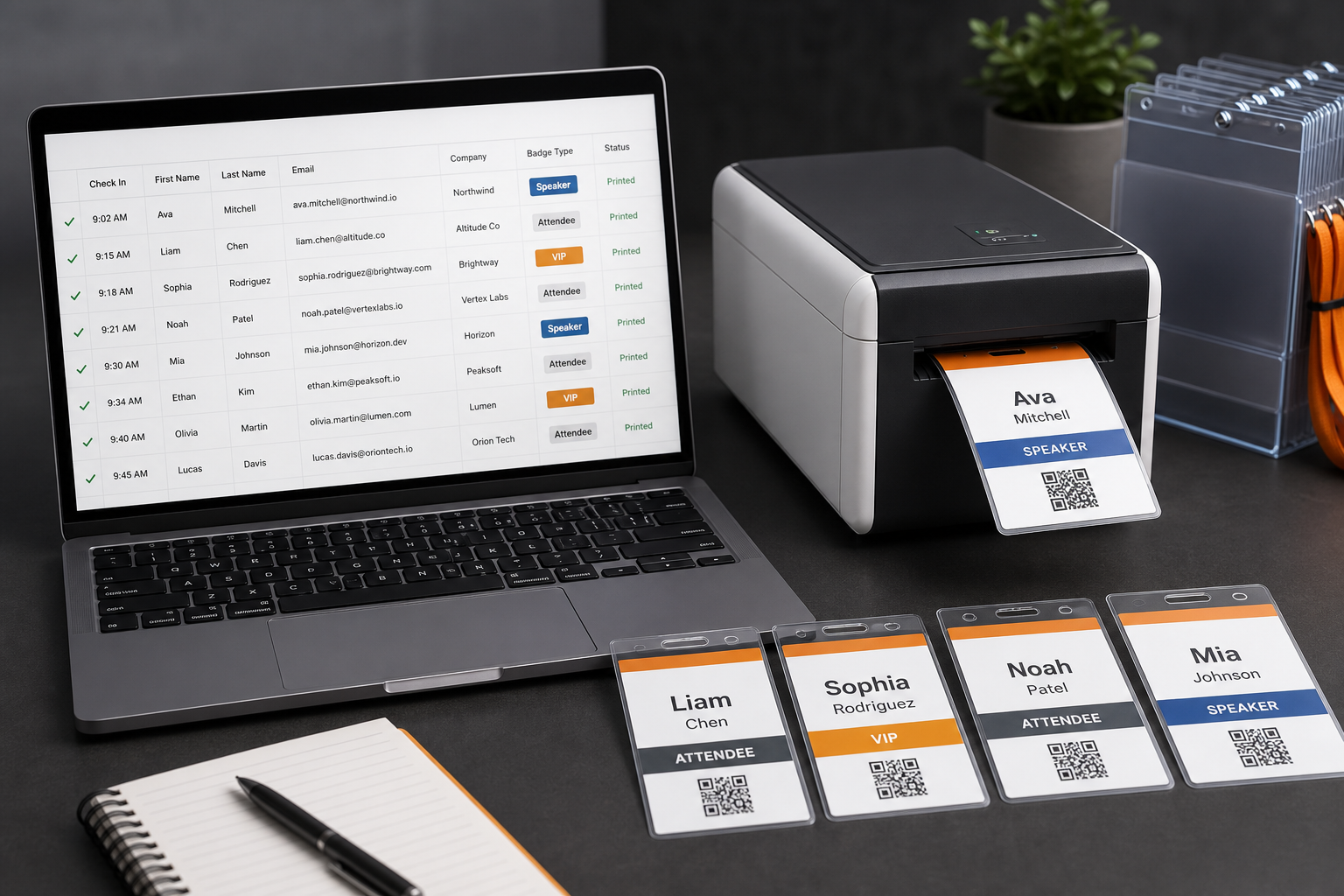
RegFox can be part of a strong event registration workflow, but many organisers still need a practical way to turn registrant data into readable, branded, printable name badges. This guide explains the main RegFox badge printing options and shows when an export-based PDF workflow with BadgeFlow makes sense.
Note: BadgeFlow is not affiliated with, endorsed by, or sponsored by RegFox.
What RegFox badge printing usually means
RegFox badge printing can mean native onsite printing inside the RegFox workflow, or it can mean exporting registrant data and using that data to design badges somewhere else. Both approaches can work; they solve different problems.
Native badge printing is useful when you want check-in and badge output to be connected. An export-based workflow is useful when you want more control over a print-ready PDF, specific paper stock, flexible layouts, or badge batches prepared before the event.
Native RegFox badge printing: when it works well
Use the native RegFox route when your onsite team is already operating inside RegFox and needs badges to print as part of the check-in process. This is especially relevant when badge printing is linked to attendance status, scanner workflows, or direct thermal printer setup.
Native printing may be the better fit when:
- You need badges to print at check-in, one attendee at a time.
- Your team wants to minimise exports and external files.
- You have staff trained on the RegFox onsite process.
- Your printer and badge stock are already compatible with the chosen workflow.
Export-based badge printing: when BadgeFlow makes sense
An export-based workflow is often better when you want custom PDFs rather than a live badge-printing station. It is a good fit if your team wants to create a batch of badges before the event, print on office paper or badge insert sheets, test different layouts, or make role-based versions.
- Export your registrant data from RegFox, if your event permissions allow it.
- Create a clean badge spreadsheet with one row per printed badge.
- Open BadgeFlow and choose your badge and paper size.
- Map columns such as name, company, ticket type, role, and QR value.
- Preview real examples and fix long names or missing fields.
- Export a print-ready PDF and print at actual size.
For a general workflow, see Name Badges From Excel.
RegFox native printing vs BadgeFlow PDF workflow vs outsourced printing
| Option | Best for | Strength | Watch out for |
|---|---|---|---|
| Native RegFox onsite badge printing | Real-time check-in and badge output | Connected onsite workflow | Hardware, permissions, and setup requirements |
| BadgeFlow print-ready PDF workflow | Custom badges from exported data | Flexible layout, PDF control, and spreadsheet editing | Not a native RegFox integration |
| Outsourced badge printing | Large batches printed before the event | Professional finish and less onsite work | Less flexible for late changes and reprints |
What attendee fields to export from RegFox
Use the export to create a badge-ready spreadsheet. Keep the badge file smaller than the full registration export.
| Badge field | Why it matters | Example |
|---|---|---|
| full_name | The main visible badge element | Jordan Lee |
| company | Helps networking and introductions | Summit Labs |
| ticket_type | Can drive attendee categories | VIP Pass |
| role | Useful for staff, speaker, sponsor, and exhibitor badges | Speaker |
| unique_id | Can become a QR code or barcode value | REG-24591 |
If you are managing a large attendee file, use the structure in Attendee Spreadsheet Template for Large Conferences.
How to prepare your RegFox attendee spreadsheet
Before designing badges, clean the data. A clean spreadsheet saves more time than any design shortcut.
- Remove cancelled orders, test entries, and duplicate rows.
- Standardise ticket types such as “VIP”, “Sponsor”, “Exhibitor”, and “General”.
- Create a separate badge_type column if the ticket name is too long for the badge.
- Check whether the full name field should include preferred name, legal name, or both.
- Shorten company names only when the meaning remains clear.
- Do not print internal payment, order, or admin notes on badges.
How to create badges in BadgeFlow from a RegFox export
After cleaning the export, use BadgeFlow to turn rows into badges.
- Choose a badge size that matches your holder, lanyard, label sheet, or paper stock. See Event Badge Size and Conference Badge Size.
- Add text areas for attendee name, company, and role.
- Add a visible role band if you need VIP, staff, speaker, or exhibitor badges.
- Add a QR code or barcode from a unique spreadsheet column when required.
- Preview several badge types before exporting.
- Print a test sheet at 100% scale.
QR codes, ticket types, roles, and access levels
RegFox registration data can include useful operational fields. A ticket type can become a role label. An attendee ID can become a QR code. A category column can help you prepare different badge batches.
Be careful with access levels. If a badge shows “VIP”, “Staff”, or “All Access”, make sure the wording is intentional and your event staff know what it means. Do not print private notes or sensitive data just because they exist in the export.
For code setup, read QR Codes & Barcodes on Name Badges.
Printing RegFox badges before or during the event
If your attendee list is mostly final, printing before the event is usually less stressful. Print, sort, and prepare reprints separately. If your list changes until the last minute, print-ready PDFs can still work onsite as long as the person handling exceptions knows how to update the spreadsheet and regenerate the affected badges.
For venue-based planning, read Printing Event Badges on a Budget and Onsite Badge Printing for Events.
Common mistakes to avoid
- Starting the design before confirming the physical badge size.
- Using full ticket names where a short role label would be clearer.
- Leaving cancelled attendees in the print file.
- Printing QR codes too small or with insufficient white space.
- Forgetting to create a reprint workflow for spelling changes and walk-ins.
FAQ
Can I print badges from RegFox?
Yes. RegFox has badge printing options, and organisers may also use exported attendee data to create badges in a separate print-ready PDF workflow.
Can I export RegFox attendees to make badges?
If your event settings and permissions allow attendee exports, you can use the exported data as the starting point for a badge spreadsheet. Check the available RegFox export fields for your event.
Do I need a Zebra printer for RegFox badge printing?
Not always. Zebra-style or direct thermal printers are useful for some onsite workflows, but many teams can print badge inserts with an office printer if they are using a PDF-based workflow.
Can I add QR codes to RegFox badges?
Yes, if your attendee data includes a unique value suitable for scanning. Use a unique ID or token rather than sensitive personal information.
Is BadgeFlow integrated with RegFox?
No. BadgeFlow is not affiliated with, endorsed by, or sponsored by RegFox. This article describes an export-based workflow for creating print-ready badge PDFs.
What is the best RegFox badge printing workflow?
Use RegFox’s native printing tools if you need live check-in badge printing inside RegFox. Use BadgeFlow if you want to work from an attendee export and create custom printable PDF badges.