
How to Create Name Badges from Google Forms and Google Sheets
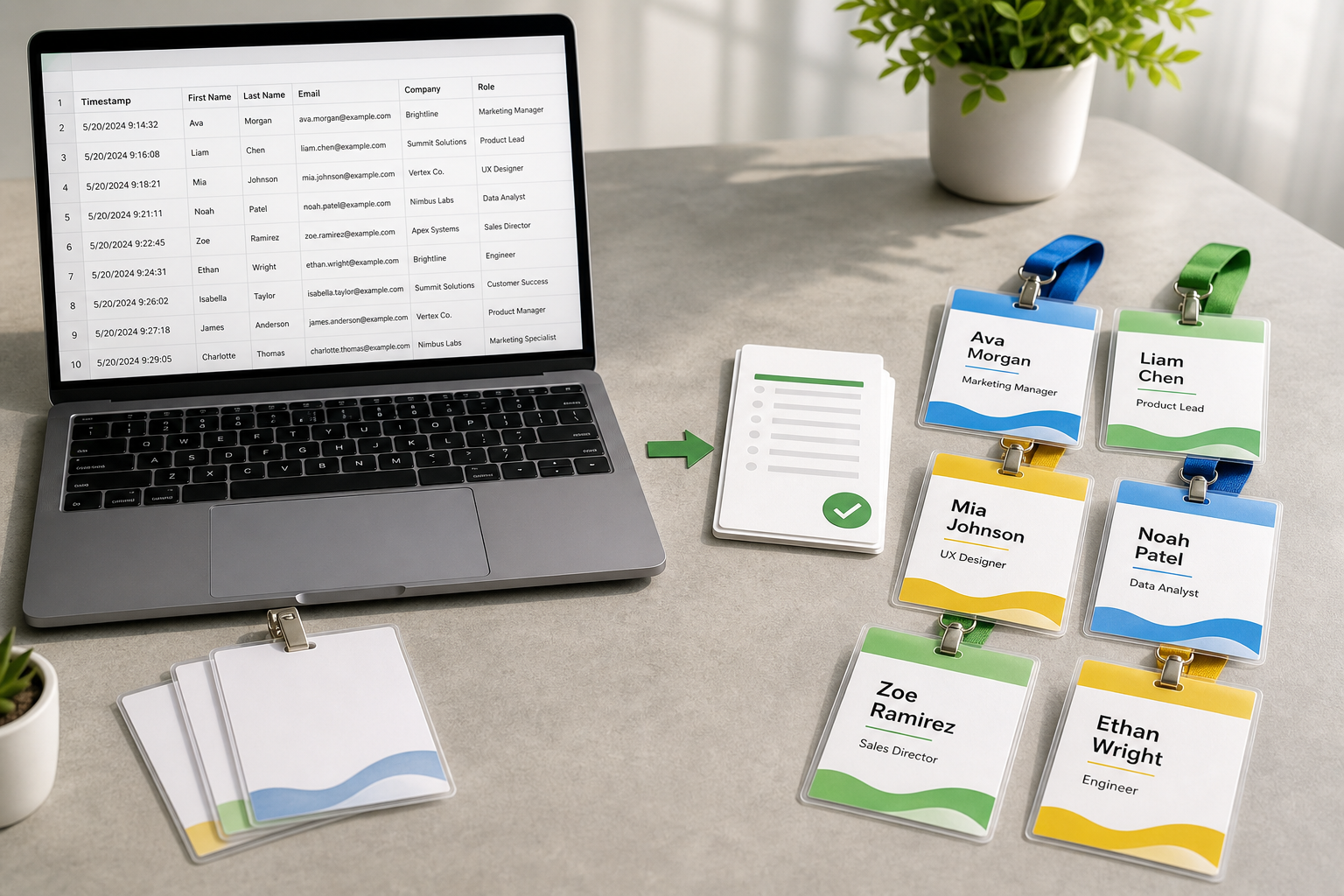
Google Forms and Google Sheets are a simple way to collect registrations for meetups, workshops, training sessions, school events, fundraisers, and small conferences. But once people register, you still need a way to turn those rows into clean, printable name badges. This guide shows how to set up the form, clean the sheet, and create print-ready badges with BadgeFlow.
Note: BadgeFlow is not affiliated with, endorsed by, or sponsored by Google.
Why Google Forms works well for event registrations
Google Forms is often enough for lightweight event registration. It is easy to share, familiar to many teams, and responses flow into a spreadsheet that can be reviewed, edited, filtered, and exported.
That makes it a natural starting point for badge printing. Instead of retyping names into a design tool, you can collect badge-ready data from the start and use the response sheet as the source of truth.
Set up your Google Form with badge-ready fields
The best badge workflow starts when you build the form. Ask for fields that will print well on a badge, not just fields that are useful for registration.
- Full name: Ask exactly how the attendee wants their name shown.
- Company or organisation: Useful for networking events and conferences.
- Job title: Optional, but helpful for professional events.
- Ticket type or role: Useful for attendee, speaker, sponsor, exhibitor, staff, and volunteer badges.
- Consent for photo badges: If you collect photos, make sure you have a clear reason and permission.
- Internal fields: Keep dietary, accessibility, or payment notes out of the visible badge design unless there is a clear operational reason.
Prepare your Google Sheets attendee list
Once responses are collected, create a clean badge sheet. You can either clean the original response sheet or copy the relevant columns into a separate tab called “Badge data”.
A separate badge tab is often safer because it lets you keep registration details intact while preparing a print-focused version of the data.
| Column | Example | Badge use |
|---|---|---|
| first_name | Amina | Optional if you print first and last names separately |
| last_name | Patel | Optional if you use full_name instead |
| full_name | Amina Patel | Main name field |
| company | North Bridge Studio | Networking context |
| job_title | Event Producer | Optional secondary line |
| ticket_type | Workshop Pass | Category or role |
| badge_type | Attendee | Useful for role-based badge labels |
| qr_code_value | ATT-00071 | QR or barcode value |
| notes | Needs invoice | Internal only; usually do not print |
Recommended columns for event badges
If you are not sure where to start, use these columns:
full_name
company
job_title
badge_type
ticket_type
qr_code_value
This structure works for many events because it separates the visible badge identity from the operational category and scan value. For larger files, use the approach in Attendee Spreadsheet Template for Large Conferences.
How to create badges in BadgeFlow from Google Sheets data
After cleaning the sheet, you can create the badge design in BadgeFlow.
- Open your Google Sheets response file and prepare a clean badge tab.
- Copy the badge-ready rows or export the data depending on your preferred workflow.
- Open BadgeFlow and choose the badge size and paper size.
- Paste or import the spreadsheet data using the current app workflow.
- Map each column to a text field, QR code, barcode, or image area.
- Preview several rows, especially long names and missing company names.
- Export a print-ready PDF and print at actual size.
For a similar spreadsheet workflow, read Name Badges From Excel and How to Print Name Tags from Excel.
How to add roles, ticket types, QR codes, and company names
Google Forms is flexible, so you can collect fields that make badges more useful on event day.
- Roles: Use a role field for attendee, staff, speaker, volunteer, sponsor, exhibitor, or VIP.
- Ticket types: Use ticket type for access levels, session types, or paid categories.
- QR codes: Use a unique ID or token generated in the sheet or exported from your registration workflow.
- Company names: Print them below the name for networking, but check long company names in preview.
For scannable codes, see QR Codes & Barcodes on Name Badges.
How to handle long names and missing data
Real attendee data is messy. Some names are long. Some company fields are blank. Some job titles are too detailed for a small badge. Before printing, preview a sample that includes your longest and shortest entries.
- Use a large, readable name field and keep job titles smaller.
- Create a fallback such as “Guest” only if it makes sense for your event.
- Leave optional fields blank rather than printing “N/A”.
- Shorten overly long ticket types into clean badge labels.
- Check line breaks before printing the full batch.
Printing your Google Forms badges
Choose your printing method based on event size and badge format. For small events, an office printer and badge holders may be enough. For larger events, you may want a more structured onsite printing workflow.
Before printing the full batch:
- Print one test page.
- Check actual-size scaling.
- Put the badge into the holder.
- Scan a QR code if you use one.
- Review the badge from arm’s length for readability.
For choosing a size, read Event Badge Size. For comparing mail merge and online badge generation, read Mail Merge Name Tags vs Online Badge Generator.
FAQ
Can Google Forms create name badges?
Google Forms collects responses, but it is not a dedicated event badge designer. The usual workflow is to collect registrations in Google Forms, review the responses in Google Sheets, then use a badge tool to turn the sheet into printable badges.
How do I print name badges from Google Sheets?
Prepare one row per attendee in Google Sheets, clean the columns you want on the badge, then copy or export the data into a badge generator such as BadgeFlow to design and export a print-ready PDF.
What columns should I collect for event badges?
Start with full name, company, job title, ticket type, badge type, and optional QR code value. Add dietary, payment, or private notes only if they are useful for operations, and do not print them on the badge.
Can I add QR codes from Google Sheets data?
Yes. If your sheet contains a unique value such as an attendee ID or check-in token, BadgeFlow can use that value to generate QR codes or barcodes in the badge design.
Do I need mail merge to print name badges?
No. Mail merge is one option, but it can be slow and fiddly for event badges. An online badge generator can be faster when you need custom layouts, badge sizes, QR codes, and print-ready PDFs.
Can BadgeFlow import Google Sheets directly?
Use the current BadgeFlow workflow available in the app. Many organisers copy spreadsheet rows or export data from Google Sheets, then use BadgeFlow to map columns into a badge design.