
Instant Badge Reprints for Walk-Ins and Last-Minute Event Changes
Fast reprints depend on a controlled process, not merely a nearby printer. The registration team needs a verified data change, a reprint queue, compatible stock, a clear filename and a way to prevent two valid-looking badges from circulating.
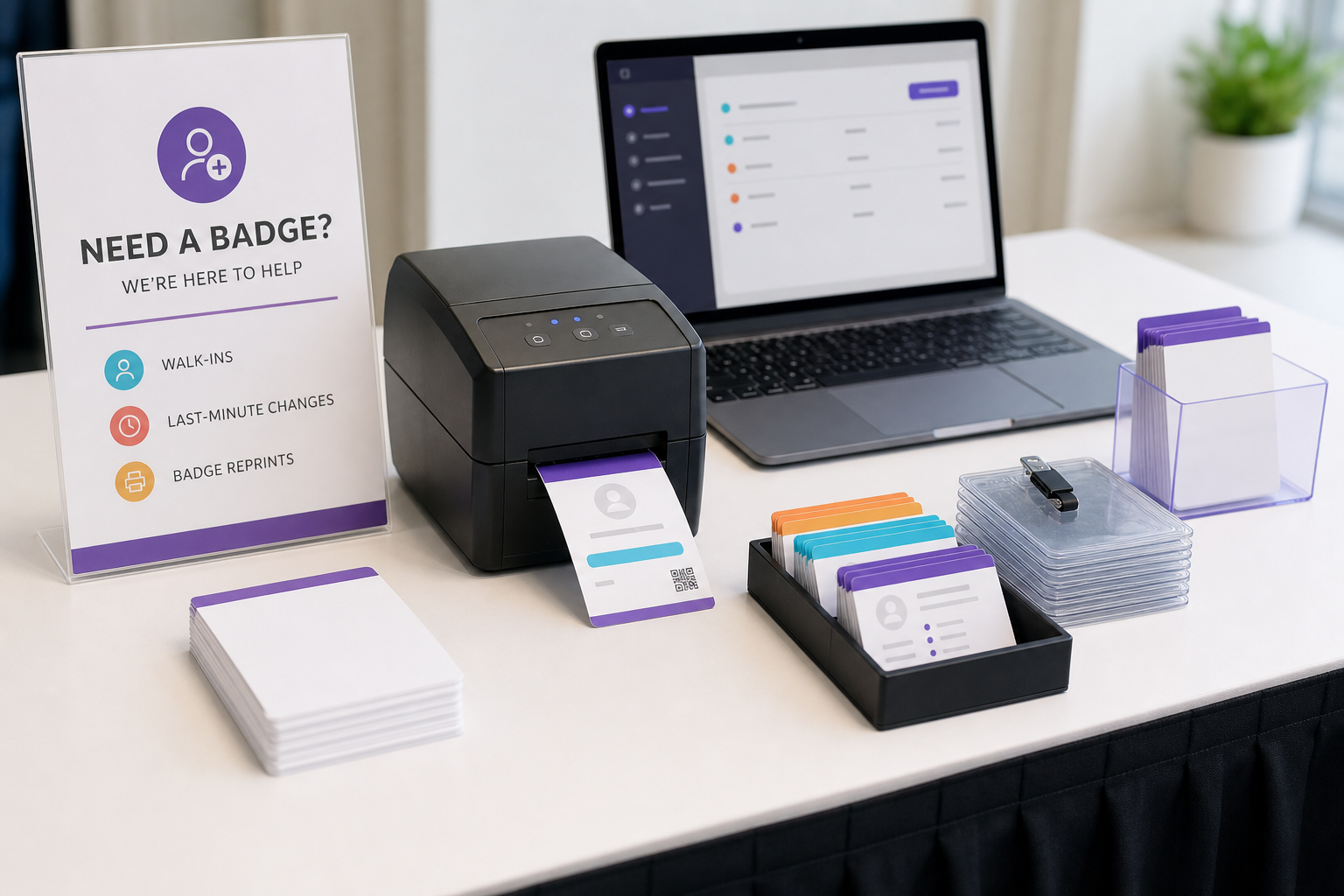
Situations that need a reprint
- A walk-in attendee has just registered.
- A name, company or role is wrong.
- A badge is lost, damaged or unreadable.
- An attendee’s access category changes.
- A speaker or sponsor is added after the main run.
- A QR code or barcode was generated from incorrect data.
The process should be quick, but it must also protect attendee data and event access.
Verify before printing
Do not issue a replacement solely because someone states a name. Follow the event’s identity and registration policy. Depending on the event, verification may include:
- matching the registration email or order reference;
- checking an identity document where proportionate and lawful;
- confirming with the registration owner;
- checking that the original badge has not already been used or transferred.
Badge design software is not an access-control system. The registration or check-in platform should remain the source of truth.
Recommended reprint equipment
| Item | Purpose |
|---|---|
| Laptop with charger | Attendee verification, data update and PDF generation |
| Tested printer | Replacement output on the final stock |
| Spare stock and holders | Corrections, walk-ins and damaged badges |
| Cutting or separation tools | Finishing inserts safely |
| Scanner or host app | Validation of QR codes or barcodes |
| Reprint log | Prevention of uncontrolled duplicates |
| Spare printer or manual fallback | Continuity during hardware failure |
Keep a clean master spreadsheet
The master attendee data should not become a collection of untracked event-day edits. Use a dedicated reprint sheet containing only new or changed records.
| Field | Example |
|---|---|
| Request time | 09:42 |
| Original badge ID | ATT-004821 |
| Reason | Company correction |
| Corrected data | Northbridge Labs |
| Approved by | Registration lead |
| Printed by | Desk 2 |
| Issued | Yes |
| Old badge recovered | Yes |
The attendee spreadsheet template provides the wider data structure.
Create a reprint queue
Use one queue for all desks instead of allowing every volunteer to edit and print independently. Assign status values:
- Requested
- Verified
- Ready to print
- Printed
- Issued
- Rejected or cancelled
For a large event, include the reprint-station number and a collection location.
Update the record, not the design
Correct the attendee data in the reprint sheet and use the existing template. Manual design edits create inconsistent typography and make future corrections difficult to reproduce.
For bulk preparation principles, see bulk badge printing from Excel.
Generate a replacement PDF
- Import or paste the reprint row.
- Map it to the approved event template.
- Confirm the correct badge and paper size.
- Preview the name, category and code.
- Export a clearly named PDF.
- Print only the required page or small batch.
Use a filename such as event-reprints-0945-desk2.pdf, not final-final-2.pdf.
Print only what is required
When using multi-badge sheets, a single replacement may consume a whole sheet or create unused positions. Maintain a process for partially used stock only when the printer and template allow safe re-feeding. Never re-feed adhesive or perforated material contrary to the manufacturer’s instructions.
Prevent accidental duplicate badges
- Use one stable badge ID.
- Record the reason for every replacement.
- Collect and destroy the old badge when practical.
- Invalidate or flag old credentials in the access system when supported.
- Do not treat a printed colour or word as secure access control.
Colour-code replacements carefully
A small “Reprint” mark or issue timestamp can help staff recognise replacements, but it may also create unnecessary stigma or confuse the event design. Use it only when the operational benefit is clear. Walk-ins can use the standard category design once their registration is valid.
QR-code and barcode implications
A corrected name does not always require a new code if the stable attendee ID remains the same. A transferred ticket or access-level change may require the check-in system to be updated as well as the badge.
Scan every replacement before issue. Use the QR-code guide for placement and privacy principles.
Offline and connectivity contingency
Keep offline copies of:
- the approved template or a printable fallback;
- a limited attendee list appropriate for the desk;
- the blank reprint spreadsheet;
- printer drivers and basic troubleshooting notes;
- the escalation contact list.
Protect downloaded attendee data and delete local copies according to the event’s retention policy.
Assign clear staff responsibilities
| Role | Responsibility |
|---|---|
| Registration agent | Receives request and verifies attendee |
| Data operator | Updates the controlled record |
| Print operator | Generates, prints and inspects badge |
| Registration lead | Approves unusual access or identity cases |
At smaller events, one person can perform several roles, but the steps should remain distinct.
Workflow by event size
| Size | Reprint setup |
|---|---|
| Under 200 | One laptop and printer at the main desk, with a simple log. |
| 200–1,000 | Dedicated reprint position, spare stock and defined escalation. |
| 1,000+ | Central queue, several intake desks, controlled print operators and redundant equipment. |
Printable event-day checklist
- Verify registration and requested change.
- Record original badge ID and reason.
- Approve access-category changes.
- Update one row in the reprint sheet.
- Generate the replacement using the approved template.
- Print on the correct stock at actual size.
- Inspect the name, role and code.
- Scan-test the credential.
- Collect or invalidate the original badge.
- Mark the replacement as issued.
Review the onsite badge printing guide and conference check-in checklist before the event.
Walk-in attendee scenario
A walk-in arrives and pays at the registration desk. The registration agent first creates or confirms the person’s valid record in the event system. The data operator then adds one row to the reprint sheet with the new attendee ID, name, organisation and category. The print operator generates the badge with the approved template, scans the code and marks it issued.
Do not create an untracked badge first and promise to update the system later. That separates the physical credential from the authoritative attendee record.
Lost badge scenario
Ask the attendee to verify their registration. Search the reprint log to confirm that another replacement has not already been issued. Where supported, flag or invalidate the original credential. Print the replacement using the same stable attendee ID only when the check-in and access system is designed to handle that process.
For high-security events, escalate lost badges to the registration lead rather than treating them as ordinary spelling corrections.
Role or access change scenario
A person changing from Attendee to Speaker, Staff or VIP may require more than visible text. Update the authoritative registration and access permissions first. Then regenerate the badge using the new category. Record who approved the change and what happened to the old badge.
Privacy at the reprint desk
Position screens so waiting attendees cannot read other records. Do not leave exported spreadsheets open on unattended laptops. Use individual staff accounts where available and avoid calling out private registration details across the queue.
- Lock the laptop when the desk is unattended.
- Keep printed error sheets face down.
- Use a restricted folder for the reprint file.
- Delete temporary PDFs according to the event policy.
- Do not place sensitive notes on the visible badge.
Design the physical reprint station
Separate intake from printing so the operator is not interrupted while loading stock or resolving a printer error. A practical layout includes:
- verification and request point;
- small waiting or collection area;
- data and print workstation;
- finishing area with holders and lanyards;
- scanner test point;
- secure disposal container for old or failed badges.
Keep cables protected and spare consumables within reach. Label paper trays and stock clearly to prevent the wrong badge format being loaded during a queue.
Service targets and escalation
Set a realistic target such as resolving ordinary spelling corrections within a few minutes, while routing access disputes or identity problems to a lead. Fast service should not pressure volunteers into bypassing verification.
Track the number and cause of reprints after the event. A high rate of company corrections may indicate that registration data was frozen too early; repeated code failures may point to layout or printer problems.
Post-event reprint review
Export the reprint log after the event and group requests by cause: registration error, attendee change, lost badge, printer defect, access change or walk-in. High volumes in one category reveal where the main workflow should improve. Share the findings with registration, data, design and production teams before the next event.
Track average resolution time and the number of requests escalated for identity or access review. The objective is not merely faster printing; it is fewer avoidable corrections and a safer, more predictable registration experience.
Frequently asked questions
What equipment is needed for event-day badge reprints?
At minimum: a laptop, suitable printer, spare stock, cutting or separation tools, holders or lanyards, tested PDF software, power and a written fallback process.
How do I print a badge for a walk-in attendee?
Verify or create the registration, add one controlled row to the reprint sheet, map the data into the existing design, generate a single-badge or small-batch PDF and record that it was issued.
How can duplicate badges be prevented?
Use a stable badge ID, log every replacement, collect or invalidate the old badge where possible, and make the scanning system the source of truth for access.
Can BadgeFlow automatically print when someone checks in?
No. BadgeFlow creates or updates print-ready PDFs. It does not provide live check-in triggers or printer-queue automation.
What should happen if the printer fails?
Keep a spare printer or manual fallback such as clearly controlled write-in badges, and retain offline copies of the template, attendee file and essential instructions.