
How to Print Name Badges with DYMO LabelWriter Printers
DYMO LabelWriter printers are most suitable for temporary adhesive name labels, visitor badges and simple meeting credentials. The 550 and 550 Turbo fit DYMO’s 41 × 89 mm name-badge labels; the wider 5XL handles 4 × 6-inch label stock but requires a different operational assessment.
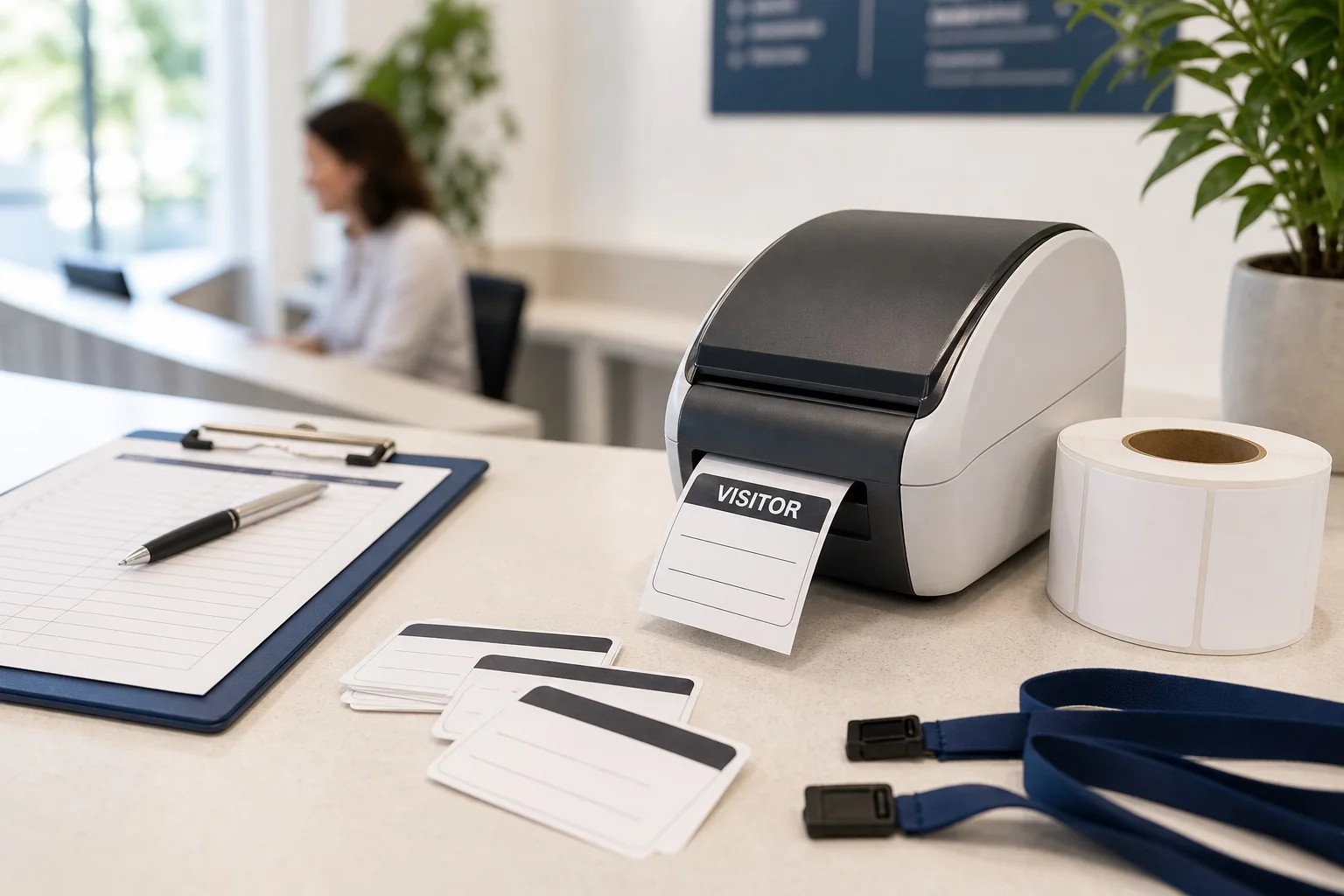
Current DYMO LabelWriter options
| Model | Technology and connectivity | Relevant output | Best badge use | Important limitation |
|---|---|---|---|---|
| LabelWriter 550 | Direct thermal, USB | Standard LabelWriter labels including 41 × 89 mm name-badge labels | Small visitor and meeting badges | Current generation uses compatible DYMO labels |
| LabelWriter 550 Turbo | Direct thermal, USB and LAN; DYMO lists 90 labels/min in a specified address-label test | Same compact name-badge formats | Faster shared office/reception workflow | Speed is not attendee throughput |
| LabelWriter 5XL | Direct thermal, USB and LAN | DYMO 4 × 6-inch shipping labels and wide labels | Wide simple labels where suitable media exists | Designed primarily around shipping-label use |
DYMO’s official name-badge label is listed at 41 × 89 mm with 300 labels per roll. That is useful for temporary nametags, but it is much smaller than a 4 × 6-inch conference pass.
How DYMO direct-thermal printing works
A heated printhead activates the surface of a compatible label. There is no ink, toner or ribbon. This keeps the printer small and simplifies normal consumables, but the label material determines durability. Do not expose a direct-thermal credential to unnecessary heat or assume it will behave like laminated plastic.
Adhesive labels versus conference inserts
| Format | Typical use | DYMO suitability | BadgeFlow setup |
|---|---|---|---|
| 41 × 89 mm adhesive name badge | Visitor, workshop, networking | Strong fit for 550/550 Turbo | One 41 × 89 mm PDF page per attendee |
| Narrow address-style label | Host, category or temporary ID | Possible with matching stock | Exact supported dimensions |
| 4 × 6-inch adhesive label | Large simple label | 5XL can print compatible DYMO stock | One 101.6 × 152.4 mm page; validate printable margins |
| Paper holder insert | Reusable lanyard holder | Compact DYMO models are usually unsuitable | Use office sheet printer or tested wide non-adhesive process |
| Full-colour conference badge | Branding, photos, category colours | Not supported by standard LabelWriter output | Use laser or colour label printer |
Use the conference badge size guide to see why an adhesive name label and a lanyard pass solve different problems.
Best DYMO badge use cases
Office visitors
Print the visitor name, host, date and visitor category. Keep the design intentionally simple. Do not expose private appointment notes.
Networking meetups
A bold first name and smaller organisation line can work well on 41 × 89 mm stock. Use one of BadgeFlow’s printable and customizable name tag templates as a starting point.
Schools and training sessions
Temporary adhesive labels can identify visitors, tutors, groups or table assignments. Confirm that the adhesive is appropriate for clothing and provide an alternative when needed.
Walk-ins and replacement labels
At a conference, use DYMO as a controlled exception printer: apply a replacement name label to a blank branded card rather than recreating the full colour pass. Follow the badge reprint and walk-in workflow.
When not to use DYMO
- The badge needs a photograph or full-colour brand treatment.
- The credential must fit a specific non-adhesive holder insert.
- The required stock is not available in a compatible LabelWriter format.
- The badge must remain stable for a long period or in heat.
- The event requires a tested native check-in-to-printer integration.
- The design includes too much information for the physical label.
- The current label-generation restrictions conflict with your media procurement policy.
Prepare attendee data in BadgeFlow
For a planned event, use the create name badges from Excel workflow. Recommended fields are first name, last name, organisation, visitor category and an optional QR token. Avoid reducing the name font to fit a long job title—remove lower-priority information instead.
Step-by-step DYMO PDF workflow
- Install the current DYMO driver and confirm the exact LabelWriter model.
- Load a compatible DYMO label roll and note the product dimensions.
- Create a BadgeFlow badge using the exact label width and height.
- Import or paste the attendee data.
- Design a high-contrast monochrome layout.
- Preview long names, blank organisations and accented characters.
- Add a QR code only if it remains comfortably scannable.
- Export one badge per PDF page.
- Open the PDF in a desktop PDF viewer.
- Select the exact DYMO label size.
- Use actual size or 100% scaling.
- Confirm portrait or landscape orientation.
- Print one label and measure it.
- Scan the QR or barcode and inspect text edges.
- Save the approved settings for every event laptop.
Design recommendations for a 41 × 89 mm badge
- Use the attendee’s first name as the dominant element.
- Keep surname and organisation on separate restrained lines.
- Use a short category such as VISITOR or SPEAKER.
- Avoid more than three dynamic text zones.
- Keep a QR code away from the label edge.
- Use black on white rather than a grey patterned background.
- Follow the name badge design principles for hierarchy.
Printing QR codes and barcodes on DYMO labels
A compact label has limited room. Use a short non-sensitive token and a code format supported by the scanner. A QR code must retain its quiet zone; a one-dimensional barcode needs enough physical width. Read the scannable badge code guide and test the actual printed label.
LabelWriter 550 compatibility considerations
DYMO describes the 550 generation as using Automatic Label Recognition and compatible DYMO LabelWriter labels. Confirm supply availability and product code before standardising a recurring event. Do not assume an older third-party roll that worked in a 450-series device will work in a 550-series device.
Windows and macOS print settings
| Setting | Required check | Common mistake |
|---|---|---|
| Printer | Exact LabelWriter model | Printing to a generic or old queue |
| Paper/label size | Exact installed DYMO label | Choosing a nearby address-label preset |
| Scaling | 100% or actual size | Fit to page |
| Orientation | Matches exported PDF | Viewer and driver rotate twice |
| Page range | Correct attendee or full batch | Accidental duplicate pages |
| Quality | Keeps code and text clean | Using draft setting without a scan test |
Troubleshooting DYMO name badges
| Problem | Likely cause | Fix |
|---|---|---|
| Printer reports incompatible label | Roll is not recognised by current generation | Use confirmed compatible DYMO stock |
| Badge prints too small | Automatic PDF scaling | Select actual size and exact label preset |
| Text is cropped | Design exceeds printable area | Increase safe margins or simplify content |
| Blank labels feed | Page size/driver mismatch | Match PDF dimensions and clear print queue |
| QR code fails | Code too small or low contrast | Increase code and preserve quiet zone |
| Label is rotated | Orientation conflict | Set orientation consistently |
| Wrong attendee prints | Incorrect PDF page selection | Clear queue and verify page range |
| Network printer disappears | LAN, addressing or driver issue | Use tested USB fallback or restore reserved network path |
DYMO versus Brother QL
DYMO provides a clearly defined 41 × 89 mm name-badge label. Brother’s compact QL range provides continuous-roll flexibility and selected networking options, while the QL-1110NWBc offers a wider print class. Compare the models in the Brother QL badge printer guide.
DYMO versus Zebra
DYMO is simpler for standard temporary labels. Zebra’s four-inch desktop range offers broader professional media sensing, direct-thermal/thermal-transfer variants and more typical conference-pass workflows. Compare all printer categories in the event badge printer buyer’s guide.
Cost and operations checklist
- Price the exact compatible label, not a generic thermal roll.
- Include rolls used for setup and corrections.
- Keep one spare device or a tested office-printer fallback.
- Decide whether the label is the complete badge or part of a branded shell.
- Check LAN or USB requirements at the reception desk.
- Verify current driver support for every operating system.
- Test the adhesive on representative clothing or provide holders.
- Use the budget badge printing guide for broader cost comparison.
LabelWriter 550 versus 550 Turbo versus 5XL
| Decision | 550 | 550 Turbo | 5XL |
|---|---|---|---|
| Standard 41 × 89 mm name badges | Yes | Yes | Check compatible label; wide unit unnecessary |
| LAN sharing | No standard LAN focus | Yes, network model positioning | Yes, LAN support |
| Higher stated address-label speed | Standard | DYMO lists up to 90 labels/min in its test | Different wide-label workflow |
| 4 × 6-inch labels | No | No | Yes, compatible DYMO stock |
| Desk footprint | Compact | Compact | Larger |
| Best role | Single reception PC | Shared reception or faster compact labels | Wide simple labels |
Using the 5XL for event badges: important caveats
The 5XL can print DYMO 4 × 6-inch shipping labels. That does not automatically make every 4 × 6 conference badge workflow suitable. Shipping labels are adhesive and designed for parcels. A lanyard badge may need non-adhesive, perforated or synthetic stock, a punch and a holder. Confirm that the available DYMO-labelled media fits the attendee experience.
If the event uses an adhesive 4 × 6 credential, test comfort, clothing compatibility, curling and removal. For a holder insert, an office printer or a Zebra/Epson roll workflow may offer more appropriate media.
Visitor-badge data minimisation
A visitor badge should communicate what staff need to see, not reproduce the visitor record. Consider:
- Visitor name
- Host or department
- Date or expiry
- Visitor category
- Unique lookup token
Avoid printing phone numbers, email addresses, meeting details or identity-document data. Keep access and verification records in the appropriate visitor or security system.
Example DYMO workflows
Corporate reception
Prepare a small list of expected visitors each morning, print at arrival and apply the label to a reusable visitor card if required. Keep a generic emergency badge process for printer downtime.
Job interview day
Use a label with the candidate name and VISITOR category; omit the interview role or confidential schedule. Print host information only when operationally helpful.
Community meetup
Export registrations to a spreadsheet, create a large first-name design, print before doors and reserve the printer for walk-ins.
Conference exception desk
Keep DYMO away from the main flow unless the badge itself is a compatible label. For a larger branded credential, apply the DYMO label inside a pre-defined white area on a blank shell.
Label handling and distribution
- Keep labels on their backing until handoff.
- Sort pre-printed badges by a clear system.
- Do not place labels on delicate clothing without consent.
- Provide a holder or alternative attachment when required.
- Discard misprints containing names securely.
- Keep unused rolls sealed and away from heat.
Batch and queue management
For advance printing, split the PDF into controlled batches and label the output. For onsite printing, clear failed or duplicate jobs from the queue before resending. A networked 550 Turbo or 5XL should have a visible printer name so staff do not send jobs to the wrong reception area.
Maintenance and cleaning
Use DYMO’s supported cleaning process and materials. Inspect the label path for adhesive residue, confirm the roll seats correctly and print a test code before each event. Direct-thermal print quality can degrade when the printhead is contaminated.
Procurement questions
- Which current LabelWriter generation is being supplied?
- Which label product codes are compatible?
- Are labels stocked in the event country?
- Does the workflow require LAN or only USB?
- Is the 41 × 89 mm label large enough for the content?
- Does the adhesive meet the clothing/visitor use?
- What is the spare-printer plan?
- Can the organisation accept the branded-label requirement?
DYMO quality-control checklist
- Print the physical label outline at 100%.
- Check long names and blank organisation values.
- Scan codes under reception lighting.
- Test label adhesion and removal.
- Print a 50-label batch to identify queue or recognition issues.
- Replace the roll and confirm recovery.
- Test the network and USB fallback.
Automatic Label Recognition explained
The LabelWriter 550 generation identifies compatible labels and can report label size/type and remaining quantity. Operationally, this can reduce accidental stock mismatch, but it also means procurement must align with the current DYMO-compatible label system. Verify stock well before the event rather than relying on older rolls already in storage.
Badge-content templates by label size
41 × 89 mm visitor badge
- First and last name
- Host or organisation
- VISITOR category
- Date or small QR token
Narrow compact label
- First name
- Surname
- Short role only
4 × 6-inch 5XL label
- Large attendee name
- Organisation and role
- QR code
- Category text
Do not fill a larger 5XL page with shipping-style dense text simply because the space exists. Apply conference badge hierarchy.
Adhesive and clothing test
Apply the label to several representative fabrics for the expected event duration. Check adhesion, curling, residue and removal. Do not use an adhesive badge on delicate clothing without offering an alternative. A reusable holder or card can carry the label instead.
DYMO event preparation timeline
- Four weeks: choose label product and order stock.
- Three weeks: create the BadgeFlow template and print a physical proof.
- Two weeks: clean attendee data and run a 50-label test.
- One week: install the driver on the event laptop and test LAN/USB.
- Day before: load stock, print control labels and stage the spare.
- Event day: monitor queue, label count and failed jobs.
Alternatives when DYMO is not suitable
| Requirement | Better starting point |
|---|---|
| 62 mm continuous custom length | Brother QL compact model |
| Four-inch professional thermal pass | Zebra ZD421/ZD621 |
| Full-colour onsite badge | Epson ColorWorks |
| A4/Letter holder inserts | Office laser printer |
| Durable plastic ID | Card printer |
| Native check-in integration | Supported event-registration hardware workflow |
Final DYMO launch checklist
- Current printer model recorded
- Compatible label code stocked
- PDF page exactly matches label
- Label recognition works
- Adhesive tested
- Long names fit
- Codes scan
- LAN and USB paths tested
- Misprint disposal process defined
- Fallback badge available
Frequently asked questions
Which DYMO LabelWriter is best for name badges?
The 550 and 550 Turbo suit DYMO’s 41 × 89 mm name-badge labels. The 5XL handles wider 4 × 6-inch labels, but it is primarily positioned for shipping and still requires compatible DYMO stock.
Can DYMO print conference badge inserts?
Compact LabelWriter models are best for adhesive name labels rather than large paper inserts. The 5XL can print wider label formats, but holder inserts and non-adhesive stock require separate compatibility testing.
Does DYMO use ink or toner?
No. LabelWriter printers use direct-thermal labels.
Can I print a BadgeFlow PDF on a DYMO?
Yes, through the DYMO printer driver when the PDF page matches a supported label size. Use actual-size printing and validate one physical label.
Why does the LabelWriter 550 reject labels?
The current 550 generation uses Automatic Label Recognition and is designed for compatible DYMO LabelWriter labels. Verify the product code and manufacturing compatibility.
Can DYMO badges include QR codes?
Yes, if the code is sufficiently large and high contrast. Test the final printed label with the intended scanner.
Is the DYMO 5XL a good 4 × 6 conference badge printer?
Its width supports DYMO 4 × 6 shipping labels, but the event suitability depends on available badge media, adhesive requirements, holder format and driver behaviour. It is not automatically a substitute for a dedicated event-badge stock system.
Should I use DYMO for a 1,000-person conference?
It may suit an exception desk or simple visitor labels. A high-volume conference should assess media supply, station redundancy and whether a professional four-inch printer workflow is more appropriate.
Official DYMO references
DYMO and LabelWriter are trademarks of their respective owner. BadgeFlow is not affiliated with, tested by or endorsed by DYMO.