
How to print multiple different name tags on one page
To print several different name tags on one sheet, the layout must treat the badge and the paper as two separate sizes. Each attendee record fills the next badge position, while the sheet controls margins, gaps, orientation, and the number of badges per page. Export the result at its real physical dimensions and print at 100% or Actual Size.
First identify which printing job you have
| Task | What it means | Suitable approach |
|---|---|---|
| Repeat one tag | The same name or design appears several times. | Copies per page or duplicate the design. |
| Print different names | Every position contains a different attendee. | Mail merge, data-connected design, or badge generator. |
| Place existing PDF pages multiple-up | You already have one badge on every PDF page. | A PDF imposition or pages-per-sheet tool, after checking final size. |
This article focuses on the second task: placing several personalized badges onto one physical sheet.
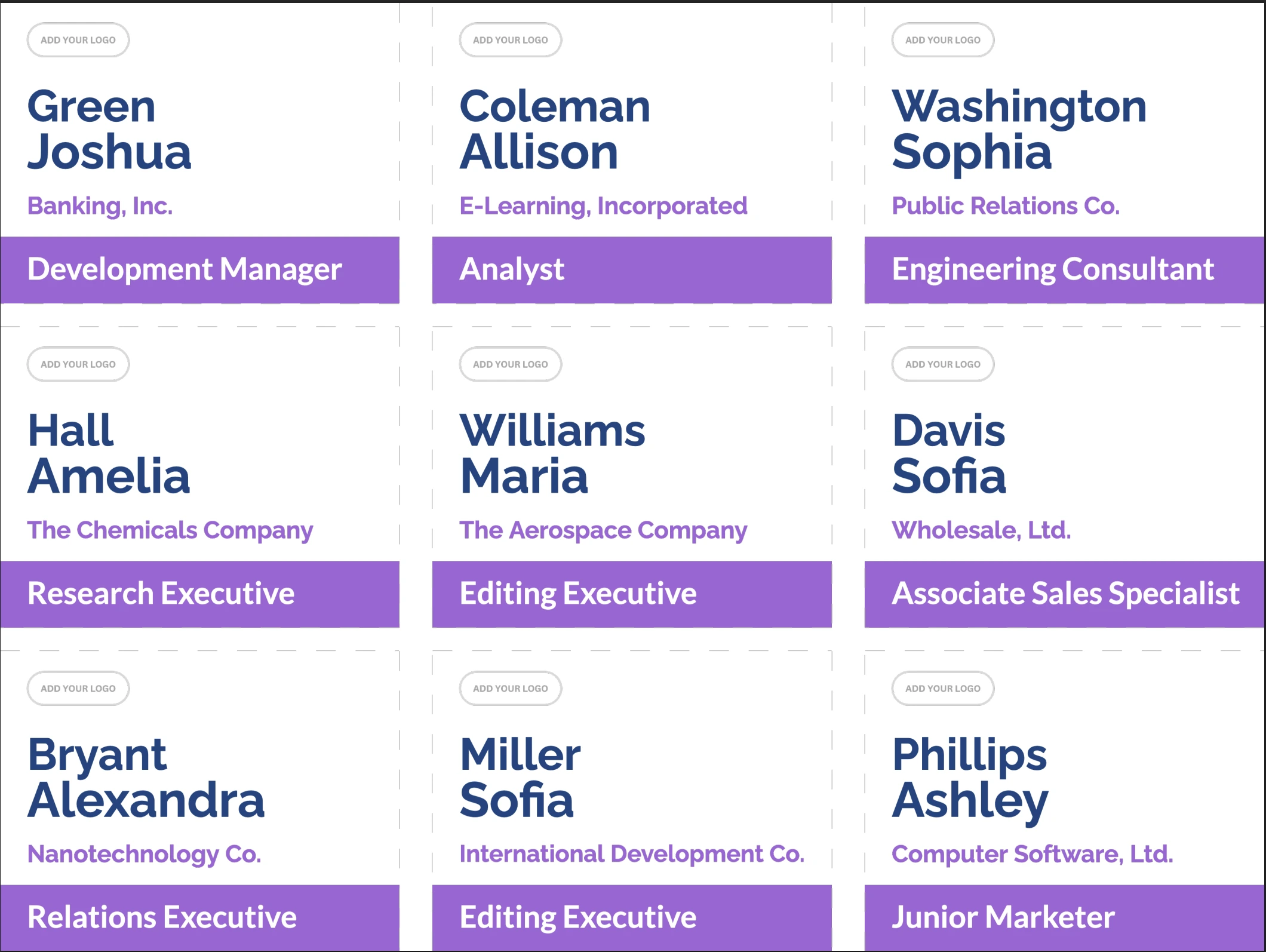
How many name tags fit on one sheet?
The theoretical count is based on the usable paper area, but the real count also depends on the printer's non-printable edges, crop space, perforations, and the exact stock.
For each direction, a useful starting calculation is:
Count = floor((usable paper dimension + gap) ÷ (badge dimension + gap))
Here, usable paper width is the paper width minus left and right margins; usable height is the paper height minus top and bottom margins. Run the calculation for portrait and landscape orientation. Then validate it against the real printer and stock.
| Badge format | Paper commonly considered | Main constraint |
|---|---|---|
| 4 × 3 in | US Letter or larger | Orientation, crop allowance, and printer margins |
| 3.5 × 2.25 in insert | US Letter pre-cut sheet | Exact product grid and perforations |
| A7 | A4 | Cutting gaps and printable edges |
| A6 | A4 | Usually four nominal A6 areas before printer/cut allowances |
| Custom badge | A4, Letter, roll, or custom | Finished size and printer/media compatibility |
Do not rely on nominal paper fractions alone. Four A6 rectangles mathematically fill A4, for example, but a desktop printer may require edge margins and you may need cutting space.
Four ways to put different names on one page
1. Word labels and mail merge
Microsoft Word can connect to an Excel list and flow one record into every label position. This works well when the label definition matches your sheet and the design is relatively simple. The main risks are table/grid formatting, long-name overflow, and cumulative alignment changes. Compare the workflow in three methods for printing name tags from Excel.
2. A full-sheet design in Canva or another design tool
Create the paper itself—A4 or US Letter—as the canvas, then place badge frames at the exact margins and gaps. This gives visual control, but connecting different attendee records to every position may require a separate bulk-data workflow or manual arrangement.
3. PDF “multiple pages per sheet”
A PDF viewer can place several one-badge pages onto one sheet. This is convenient for blank cardstock and approximate layouts. It is risky when badge dimensions must stay exact: the viewer may scale pages to fit, add margins, rotate content, or space pages differently from pre-cut stock.
4. Badge-specific spreadsheet-to-PDF layout
BadgeFlow separates finished badge dimensions from paper dimensions. You import Excel or CSV attendee data, map fields to the badge, choose the paper, and create a PDF where each attendee occupies the next position. This is useful when the names, companies, titles, QR values, or badge types differ.
Step-by-step: print different names with BadgeFlow
- Prepare one row per badge. Use columns for name, company, role, badge type, and optional code values.
- Import or paste the attendee data. Check duplicates, blank rows, and buyer-versus-attendee records.
- Choose the finished badge size. If you use holders, design for the insert, not the holder's outside dimensions. The badge holder size guide explains the distinction.
- Choose the paper size. Select A4, US Letter, or the required custom/pre-cut layout.
- Map the fields and inspect previews. Test long names, missing companies, and every badge category.
- Generate the PDF. Check page count, order, crop marks, and blank positions.
- Test-print one page. Use plain paper before loading expensive badge stock.
Printing on Avery or other pre-cut badge sheets
Pre-cut sheets have fixed physical positions. Match the exact product code rather than choosing a layout because its badge size looks close. Two products can use similar badge dimensions but different margins or gaps.
- Confirm whether the sheet is A4 or US Letter.
- Match badge width, height, top margin, side margin, horizontal pitch, and vertical pitch.
- Use the correct printer technology for the stock.
- Print a plain-paper overlay before using the sheet.
- Set scaling to 100% or Actual Size unless the manufacturer specifies another setting.
Start with the Avery-compatible name badge template guide, then use the article for your exact product code when available. BadgeFlow is not affiliated with or endorsed by Avery or another label manufacturer.
A4 and US Letter are not interchangeable
| Paper | Dimensions | Shape difference |
|---|---|---|
| A4 | 210 × 297 mm (8.27 × 11.69 in) | Narrower and taller |
| US Letter | 8.5 × 11 in (215.9 × 279.4 mm) | Wider and shorter |
Switching between them can reflow a generic layout or move every row away from its perforation. Select the paper loaded in the printer and ensure the PDF page uses the same dimensions.
Why multiple name tags become misaligned
| Symptom | Likely cause | What to check |
|---|---|---|
| First row is correct; lower rows drift | Scaling or pitch/gap mismatch | 100% size, exact vertical pitch, correct paper |
| Every badge is too small | Fit-to-page or multiple-up shrinkage | Actual Size and PDF page dimensions |
| Left column fits; right column shifts | Side margin or horizontal pitch mismatch | Product template and printer centering |
| The same name repeats | Copies were created instead of merged records | One row per badge and record progression |
| Some positions are blank | Blank spreadsheet rows, filter state, or intentional remainder | Imported records and final sheet page |
| Edges are clipped | Content outside printable/safe area | Printer margins, bleed, and crop space |
For media thickness and printer considerations, see what paper or cardstock works for badge printing. For holder-based production, follow the badge insert printing guide.
Preflight checklist
- The spreadsheet contains one valid record per badge.
- Badge and paper sizes are separate and correct.
- A4/Letter and portrait/landscape settings match the loaded stock.
- Margins and gaps match any pre-cut sheet.
- Long names and missing fields remain readable.
- The PDF is printed at 100% or Actual Size.
- A plain-paper overlay aligns with the physical sheet.
- The printed insert fits the real holder.
Frequently asked questions
How do I print different names on the same sheet?
Use a data-connected layout that advances to the next attendee record for each badge position. Word mail merge and badge generators can do this; ordinary copy settings only repeat the same design.
Why does “pages per sheet” make my name tags too small?
The PDF viewer scales document pages to fit its imposed grid and printer margins. That is convenient for approximate blank-paper layouts but can change exact badge dimensions.
Should I choose Fit or Actual Size?
For a PDF already created at the correct badge-sheet dimensions, use Actual Size or 100%. Fit can shrink the layout. Always follow the stock manufacturer's instructions and test one page.
Can I put multiple Canva name tags on one page?
Yes, by building a full-sheet design or using PDF multiple-up printing. Confirm that different names populate each position and that the final physical size and sheet grid are correct.
How many 4×3 badges fit on Letter or A4 paper?
The count depends on orientation, printer margins, cutting gaps, and whether 4×3 refers to width by height. Calculate the usable area and validate the proposed grid with a physical test.
Why does alignment drift down the page?
Cumulative drift usually indicates scaling or a mismatch in vertical pitch—the badge height plus the gap between rows. Confirm the exact template and print at 100%.
Can I use the same layout for A4 and US Letter?
Not safely. A4 is taller and narrower, while Letter is wider and shorter. Create or select a layout for the actual paper.