
Create printable name badges from a CSV file
Import your attendee CSV, map its columns to a reusable design, generate one personalized badge for every row, and download a print-ready PDF arranged for the selected paper size.
What your CSV should look like
Use a header row with clear field names, followed by one attendee per physical badge. This fictional sample keeps each field separate:
| first_name | last_name | company | job_title | badge_type | qr_value |
|---|---|---|---|---|---|
| Maya | Chen | Northstar Labs | Research Lead | ATTENDEE | REG-00041 |
| Omar | Haddad | Willow Partners | Director | SPEAKER | REG-00042 |
| Sofía | Alvarez | Brightline Studio | Designer | EXHIBITOR | REG-00043 |
first_name,last_name,company,job_title,badge_type,qr_value
Maya,Chen,Northstar Labs,Research Lead,ATTENDEE,REG-00041
Omar,Haddad,Willow Partners,Director,SPEAKER,REG-00042
Sofía,Alvarez,Brightline Studio,Designer,EXHIBITOR,REG-00043
Before importing: remove totals, notes, and blank rows; confirm that each record represents an attendee rather than a ticket purchaser; and save a clean UTF-8 CSV so accented characters remain intact.
One row should equal one physical badge
A CSV is plain-text tabular data, not an Excel workbook. Its delimiter separates columns and its line breaks separate records. For predictable badge generation:
- put one badge recipient on each row;
- use unique, descriptive headers without merged cells;
- split first name, last name, company, title, badge type, and identifier when the design treats them differently;
- remove duplicate attendee rows or issue them deliberately when two physical badges are required;
- confirm that a group purchaser's contact details have not been repeated in place of each attendee; and
- exclude columns the badge does not need.
For a reusable starting structure, use the attendee spreadsheet template. For workbook-specific preparation, read the broader guide to name badges from Excel.
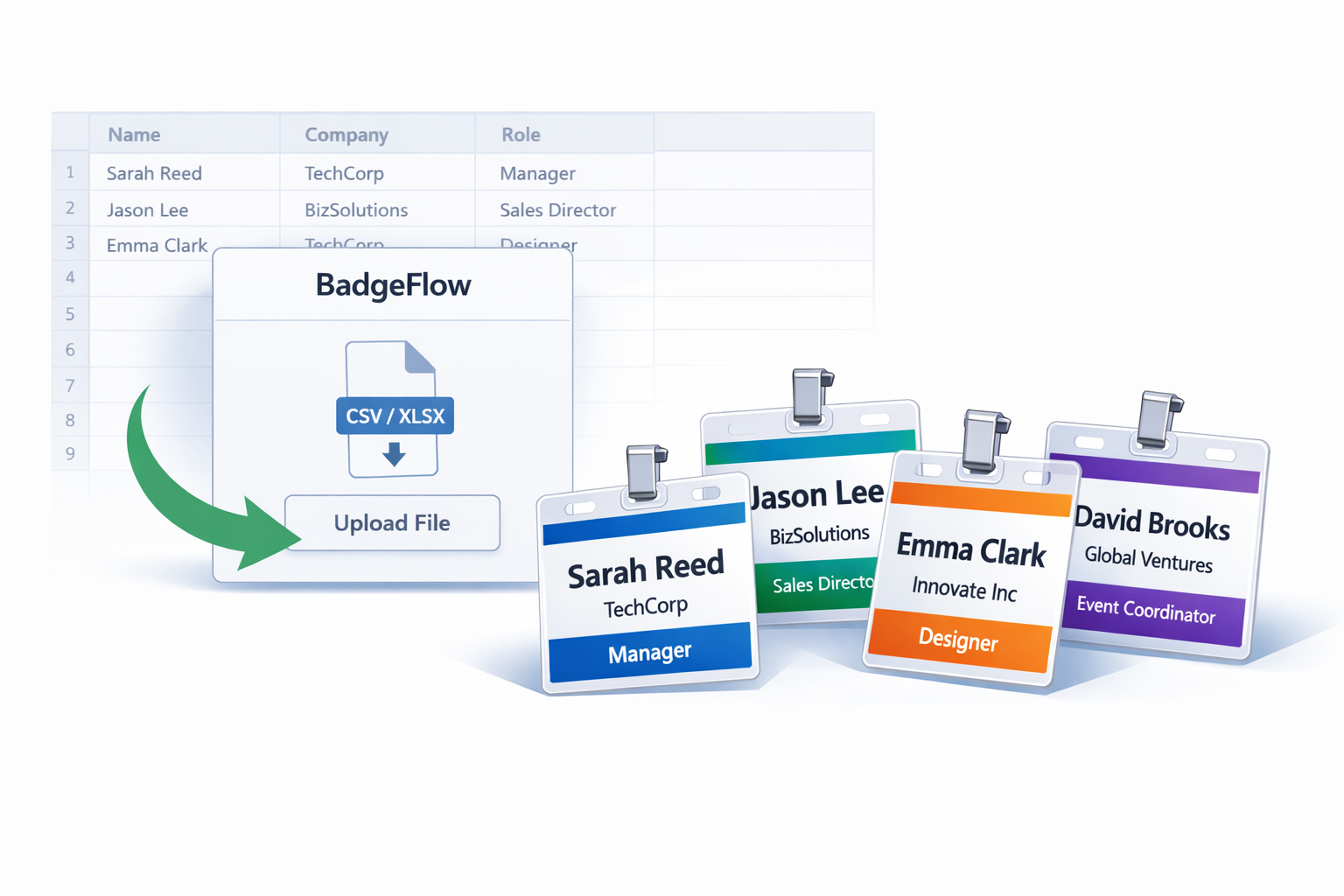
How to create name badges from CSV
Export a clean CSV
Export attendee records from the registration platform or spreadsheet. Choose UTF-8 where the source provides an encoding option, then open a copy to confirm the header and row structure.
Import the file into BadgeFlow
Open the CSV and verify that names, companies, badge types, and IDs appear in the expected columns.
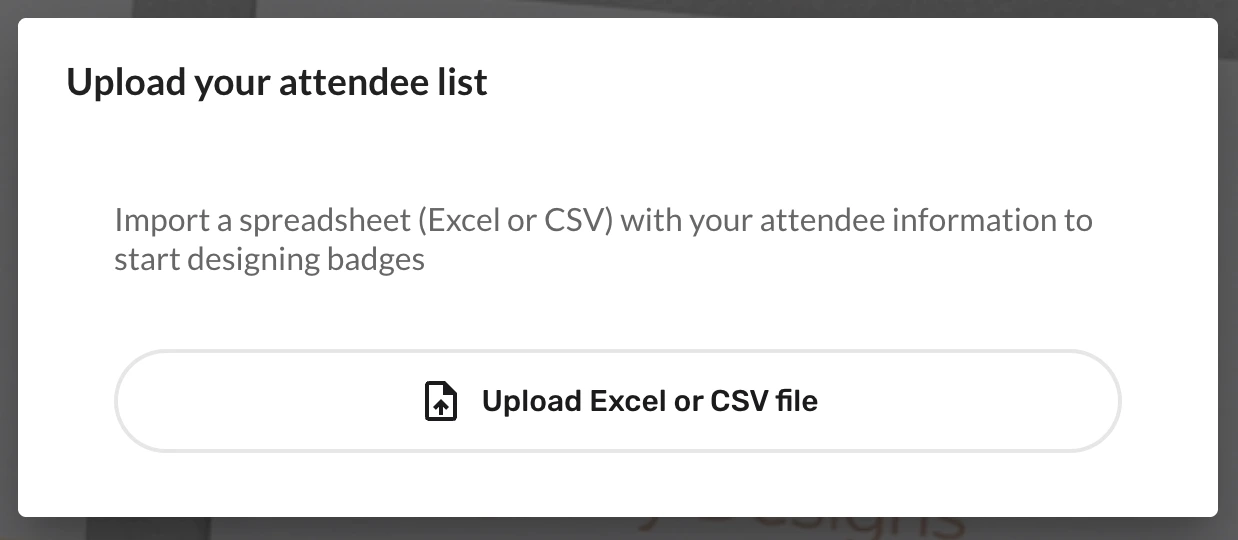
Upload the cleaned CSV attendee list. Map CSV columns to badge elements
Connect each source field to the correct text, QR code, or barcode element. Keep printed labels such as “Booth” or “Speaker” in the template when they are shared across records.
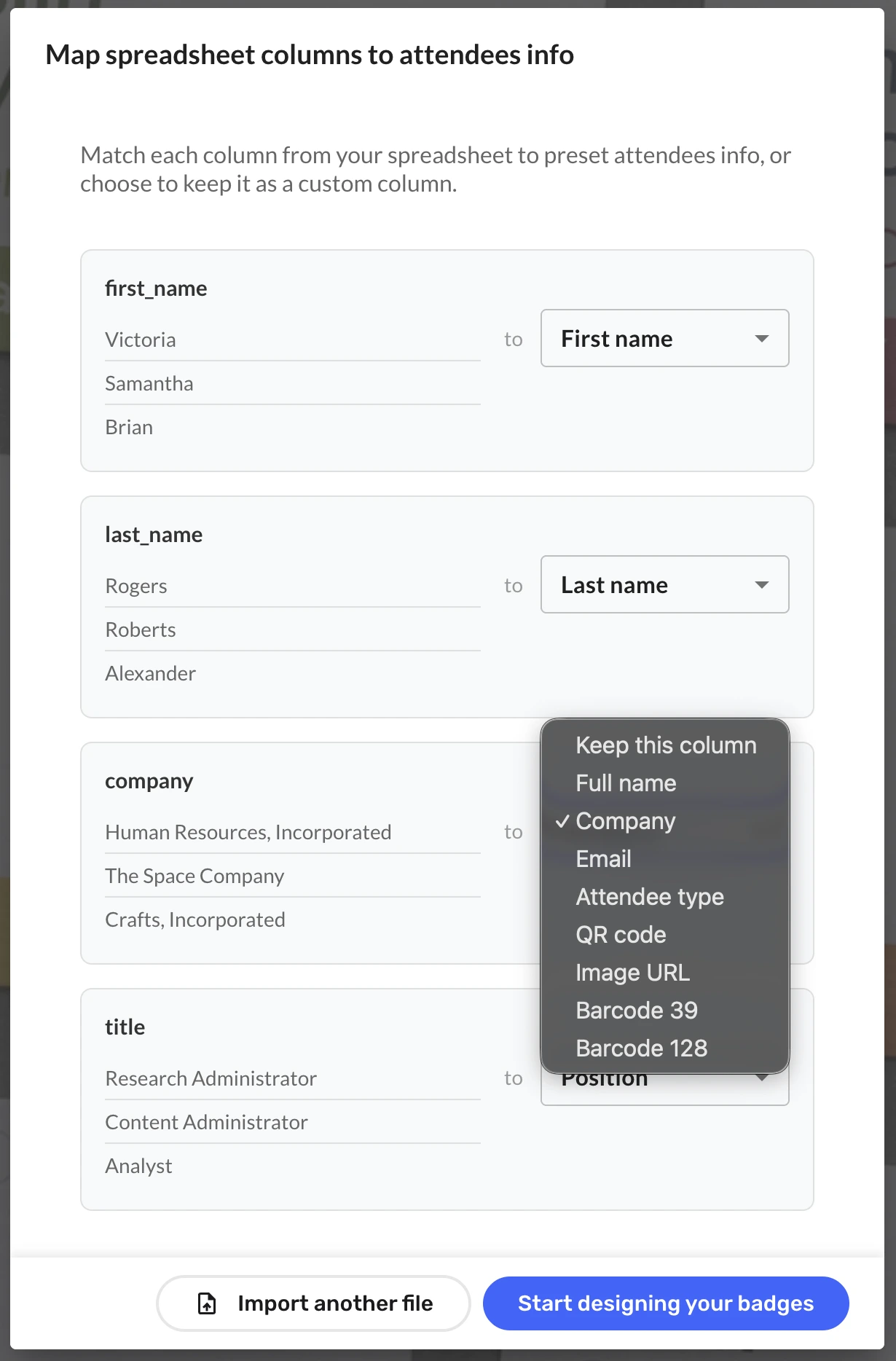
Map each CSV column once for the full batch. Choose the size and customize the template
Select a standard or custom badge size, then adjust fonts, colors, logos, images, shapes, and layout. Set A4, US Letter, or custom paper according to the physical stock.
Preview difficult records
Review the longest names and companies, accented characters, blank values, each badge type, and code values with leading zeros.
Export and test-print the PDF
Generate the print-ready PDF, print a small sample at 100% or Actual Size, and verify dimensions, alignment, cutting, holder fit, and scans before the full batch.

Inspect the arranged badge sheet before test-printing the PDF.
The full production checklist is covered in bulk badge printing; its print controls apply even when the source file is CSV.
Common CSV problems and fixes
| Problem | What it looks like | Practical fix |
|---|---|---|
| Wrong delimiter | Every value appears in one column, or a company name splits unexpectedly. | Export with the expected comma delimiter and quote fields containing commas. |
| Broken accented characters | Names show replacement symbols or incorrect letter sequences. | Export and save as UTF-8, then re-import and inspect representative names. |
| Combined names | The design cannot emphasize or wrap first and last names independently. | Split them into separate columns, or keep a deliberate preferred_name field. |
| Duplicate rows | One attendee receives multiple badges. | Deduplicate using the registration ID and verify genuine multi-badge cases. |
| Buyer instead of attendee | A purchaser's name repeats across a group booking. | Export ticket-holder or attendee records rather than order-level contacts. |
| Lost leading zeros | 00041 becomes 41. | Preserve identifiers as text before export and inspect the raw CSV value. |
| Reformatted dates | Ambiguous or locale-shifted dates appear. | Export an explicit display field such as 2026-08-20 or a preformatted label. |
| Unsafe personal fields | Email, phone, dietary, or private notes are available for mapping. | Remove unnecessary columns from the badge-production copy before import. |
Fields worth printing—and fields to leave out
| Often useful | Usually unnecessary on the visible badge |
|---|---|
| Preferred name, company, title, attendee type, booth, track, stable registration identifier | Email, phone, billing address, payment details, dietary or medical data, private notes, access-control secrets |
Print only what someone needs to see or scan during the event. This is practical data minimization, not legal advice; follow the organization's own privacy and retention policies.
Use CSV exports from event platforms
Eventbrite, Cvent, Bizzabo, Ticket Tailor, and similar registration platforms commonly let organizers export structured records. The exact export menus and available columns can change, so use the platform's current official documentation. The BadgeFlow workflow is export and import—not a claimed direct integration.
Choose an attendee-level export, prepare a clean print copy, and map its fields in BadgeFlow. For an example of this boundary, see Eventbrite CSV export to badges.
Generate unique QR codes or barcodes from CSV values
Store one stable, unique identifier in a column such as registration_id or qr_value, then map it to a QR code or barcode element. Preserve the exact string, including leading zeros.
The printed code is a carrier. A separate compatible scanning system must resolve the identifier and decide what happens next; the code by itself does not check someone in, grant access, or capture a lead. Review QR codes and barcodes on name badges before production.
Print on A4, US Letter, pre-cut sheets, or custom media
Choose the finished badge dimensions first, then the paper or label layout. BadgeFlow supports A4, US Letter, and custom paper sizes and can arrange badges on the selected sheet. For pre-cut stock, the exact grid, margins, gaps, and paper size must match; for every format, the printer's printable area and media support still apply.
Use the guide to choose the right badge size, then test one page at 100% or Actual Size.
Frequently asked questions
Can I create a different name badge for every CSV row?
Yes. Each attendee row can populate one personalized badge using the fields you map into the template.
Which CSV columns should I include?
Include only fields needed for the badge, such as preferred name, company, job title, attendee type, booth or track, and a stable code value. Use clear headers and one record per badge.
Can I use a CSV exported from Eventbrite or another registration platform?
Yes, after exporting attendee-level records and cleaning the file. The workflow is export from the platform and import into BadgeFlow, not a direct integration.
Can CSV fields generate unique QR codes or barcodes?
Yes. Map a unique CSV value to a code element. A separate compatible scanning system must interpret that value for check-in, access, or lead retrieval.
How do I preserve accented characters and leading zeros?
Save the CSV as UTF-8 and inspect accented names after import. Treat identifiers as text before export and verify the raw values still contain their leading zeros.
Can I print the resulting badges on Avery-compatible sheets?
Yes, when the selected layout matches the exact sheet product, paper size, margins, gaps, and printer scaling. BadgeFlow is not affiliated with or endorsed by Avery.
Is there a practical limit on the number of badges?
The practical batch size depends on browser and device resources, design complexity, PDF size, printer capacity, sorting, and onsite operations. Test a representative batch and split very large runs into controlled groups when useful.