
Family Reunion Name Tag Templates from a Guest List
The best family reunion name tag templates make a preferred name easy to read and add just enough optional context to help people connect. A family group, household, nickname, or conversation starter may be useful, but everyone should be able to choose a simple name-only tag. Put the approved fields into a guest spreadsheet, build one clear layout, and generate the batch as a printable PDF.
Family gatherings often include different surnames, new partners, friends, and relatives who have not met before. A welcoming badge system makes room for all of them. It should help people introduce themselves without requiring them to explain their place in the family.
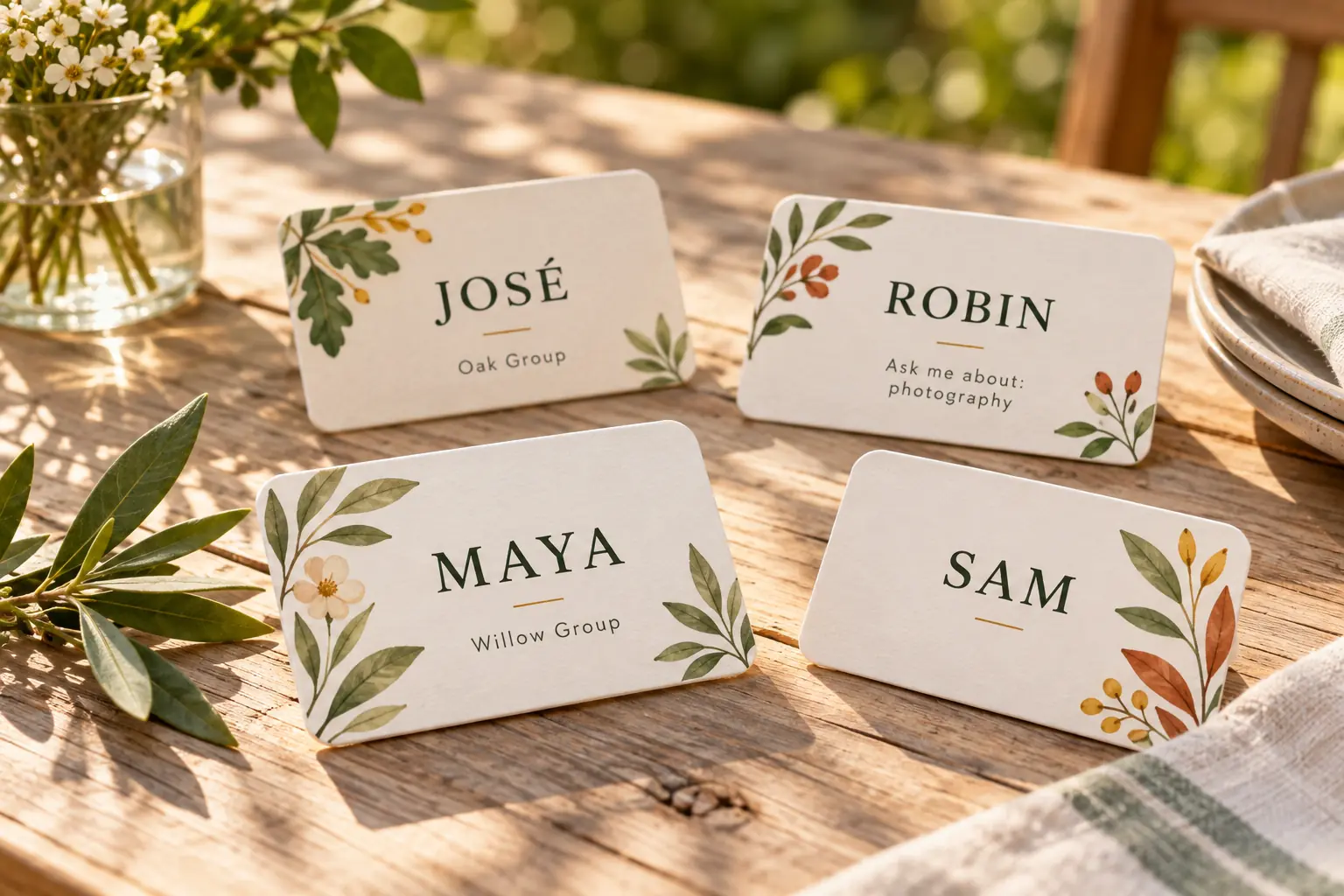
Choose information people are happy to wear
Start with “What name would you like on your tag?” That question is more useful than automatically copying the formal name on a booking. Someone may prefer a nickname, a shortened first name, or their full name with accents preserved.
Then offer one optional supporting field. For a large reunion, a family branch or household may help people find connections. At a smaller meal, a shared interest may be more useful than an elaborate family-tree label.
- Make the preferred name the largest element.
- Use an optional surname where it helps recognition.
- Allow people to leave group or relationship fields blank.
- Use plain labels that the wearer understands and accepts.
- Keep addresses, phone numbers, birth dates, and private organizer notes off the tag.
Do not assume all members of one household share a surname. Avoid assigning someone a family category based only on the person who booked their place. Ask when the intended wording is unclear.
Five printable family reunion layouts to recreate
These examples are layout recipes you can recreate in a badge editor. They are not downloadable template files or claims that these exact designs are built into BadgeFlow. Choose the final dimensions to match your stock, holders, and content.
1. Simple large-name tag
Use a plain landscape design with a small reunion title and a large preferred name. A 4 × 3-inch insert offers space for a long name; a shorter name may also work well on compatible adhesive badge stock.
FAMILY REUNION
Sam
This is a strong default for a small gathering and a useful fallback for anyone who does not want extra context printed. Keep decorative graphics to one restrained area.
2. Family-branch tag
Use the same large-name layout and add a printed group label below it. You can repeat a color across a family branch, but retain the text label so the meaning remains clear without color.
Maya Patel
Family group: Willow
Agree on group names in advance. Neutral labels, chosen branch names, or familiar family references may work; the important point is that attendees know what the wording means and are comfortable using it.
3. Household or guest-group tag
A 4 × 3-inch landscape insert can show a preferred name followed by a short household or guest-group line. This is useful when several people arrive together but have different surnames.
Robin Morgan
With Jamie’s group
Keep the supporting line optional. A person should not have to be labeled as someone else’s guest when their own name is enough.
4. Conversation-starter tag
Keep the name central and add one short prompt at the bottom, such as “Ask me about: baking.” Use a topic supplied by the person. A landscape insert gives the prompt room without turning it into a paragraph.
José
Ask me about: old family recipes
Avoid surprise jokes or nicknames added by the organizing team. A badge is public, and the wearer should be able to approve the wording.
5. Large-print tag
Use a high-contrast name and, at most, one short supporting line. Choose a roomy insert rather than squeezing a long name into small lettering. Remove decoration or optional fields before reducing the name substantially.
This design can be used across the whole reunion. A clear standard layout is often easier than maintaining a special version that people have to request.
| Recipe | Useful setting | Required field | Optional context |
|---|---|---|---|
| Simple large name | Small meal or informal get-together | Preferred name | Reunion title |
| Family branch | Large multigenerational gathering | Preferred name | Agreed group label |
| Household/guest group | People attending together | Preferred name | Household or chosen group |
| Conversation starter | Relatives meeting for the first time | Preferred name | Self-selected interest |
| Large print | Clear recognition across event formats | Preferred name | One short line |
For a mixed indoor/outdoor event, the choice of stock and protection is separate from the wording. Choose a layout first, then test the physical tag for the conditions in which it will be worn.
Prepare the guest list
Use one row for each wearer, including guests and people who booked as part of a household. Separate the optional fields rather than writing everything into one long name cell. That lets you omit unnecessary information cleanly.
| Preferred name | Surname, optional | Family group | Household | Conversation prompt |
|---|---|---|---|---|
| Maya | Patel | Willow | Maya’s household | Gardening |
| José | Rivera | Oak | José’s household | Old family recipes |
| Alexandra | Chen-Williams | Willow | Alexandra’s household | |
| Jamie | Chen | Maple | Jamie’s group | Cycling |
| Robin | Morgan | Jamie’s group | Photography | |
| Sam | Baking |
Not every column needs to appear on the finished tag. Choose the fields for the selected design, and leave the rest as working data or remove them from the production copy. Robin and Sam do not need artificial family-branch labels to fit the system.
Check the guest list with the person coordinating attendance before you print. A total of 20 households may represent many more than 20 people. Count individuals rather than bookings.
Create the reunion batch in BadgeFlow
- Prepare the approved guest spreadsheet with clear column headings.
- Import the data into BadgeFlow.
- Choose a suitable existing layout or recreate one of the recipes above.
- Map the preferred name and only the supporting fields you want visible.
- Adjust the design using a long name and a record with blank optional fields.
- Select the matching paper layout and export the printable PDF.
The Excel name-badge guide covers the general data workflow. For additional layout starting points, browse the printable name-tag guide.
Use a neutral background if you want the quickest consistent result. A clearly printed Family group field can communicate the group without requiring several designs.
Using different colors for groups
If you choose a separate accent for each family group, prepare and check those batches deliberately. Do not assume a text value in the spreadsheet will automatically change the badge background.
Keep the same name placement, margins, and type choices across all groups. Label each output file clearly and reconcile the sum of the batches with the total number of guests. Print the group name as well as its color.
Print and distribute the name tags
Choose between adhesive badges and inserts according to the materials you intend to use. Check printer compatibility and the stock maker’s instructions, including any fabric restrictions for adhesive products.
Print a plain-paper test at Actual size or 100% scaling before using the final stock. Match the PDF page size and layout to the actual sheet. See the multi-tag printing guide and the Avery-compatible layout guide for those choices.
Organize the finished tags in a way the welcome team can explain: alphabetical order, chosen household group, or clearly labeled family group. Keep a small number of blank tags for late additions and corrections.
Let someone change or remove an optional line without making it a public discussion. The goal is an easy introduction, not enforcing a family classification. A simple name-only replacement should always fit the event design.
Frequently asked questions
What should a family reunion name tag include?
A preferred name is enough. Add a surname, family group, household, or conversation prompt only when it helps and the attendee wants it included.
How do I show different family branches?
Use an agreed text label. A color can reinforce it, but the tag should remain understandable without color.
Can guests have the same design?
Yes. Use the same main layout with a name and an optional group or guest line. There is no need to make guest tags less prominent.
Can I use nicknames?
Use the name the person asks to have printed. Do not assume a childhood nickname is still welcome.
Can I make the tags from Excel?
Yes. Prepare one person per row, import the production list, and map the visible fields to the design.
Are the designs downloadable templates?
The examples here are layout recipes. Recreate them using a suitable editor layout or a custom design, then generate your own personalized PDF.